
How to Organize Digital SVG File Library Like a Pro
 25 min read
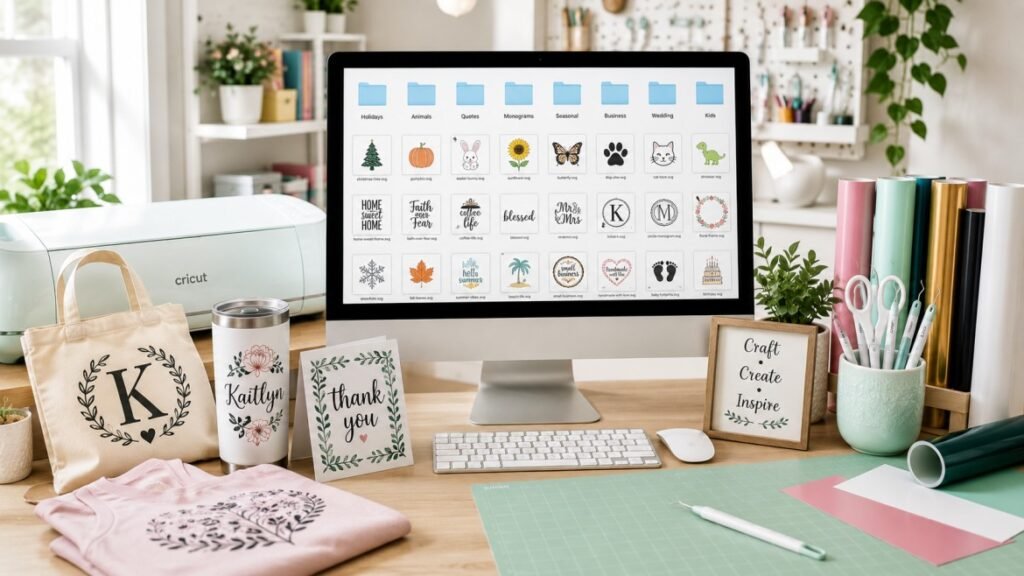
If you’re a Cricut or Silhouette crafter who’s been collecting SVG files for more than a few months, you know the pain: dozens of zip files in your Downloads folder with names like “bundle-final-v3.zip,” duplicate files scattered across multiple drives, designs you can’t find when you need them, and that one perfect file you remember downloading but can’t locate to save your life.
A disorganized SVG library isn’t just frustrating — it’s costing you time and money. Every minute spent searching through folders is a minute you’re not creating. Every duplicate file purchase because you couldn’t find what you already owned is wasted money. Every missed deadline because you couldn’t locate the right design fast enough is lost income or frustrated customers.
Professional crafters and successful Etsy sellers don’t have this problem. They have organized SVG libraries with clear folder structures, consistent naming conventions, proper backups, and systems that let them find any file in seconds. The difference between a chaotic collection and a well-organized library is the difference between hobby crafting and running a real business.
This guide shows you exactly how to organize your SVG files like a professional. We’ll cover folder structure systems that actually work, file naming conventions that make sense, metadata and tagging strategies, the best software tools for managing SVG collections, backup strategies that protect your investment, and workflow systems that save hours every week. Let’s transform your digital chaos into an organized, searchable, professional SVG library.
📋 Table of Contents
- Why SVG File Organization Matters for Your Business
- The Ultimate SVG Folder Structure System
- File Naming Conventions That Actually Work
- How to Organize Your Existing SVG Chaos (Step-by-Step)
- Best Category Systems for Different Crafter Types
- Using Metadata and Tags for Advanced Organization
- Best Software Tools for Managing SVG Libraries
- Cloud Storage vs. Local Storage: What Works Best
- Backup Strategy: Protecting Your SVG Investment
- Weekly Maintenance Routine to Stay Organized
- Finding and Eliminating Duplicate SVG Files
- Tracking Which Files You’ve Used in Projects
- Keeping Track of Commercial Licenses
- Frequently Asked Questions
Why SVG File Organization Matters for Your Business
Let’s talk about the real cost of a disorganized SVG library. It’s not just about aesthetics or being tidy — there are tangible business impacts that affect your bottom line and your sanity.
The Hidden Costs of SVG Chaos
Time waste is money waste. If you spend an average of 10 minutes per project searching for files, and you complete 3 projects per week, that’s 30 minutes per week — 26 hours per year — spent on nothing but searching. At $25/hour (a modest craft business rate), that’s $650 per year lost to file searching alone.
Duplicate purchases add up. When you can’t find a file you already own, you buy it again. If you accidentally repurchase just 5 files per year at $5 each, that’s $25 wasted on files you already paid for. Many crafters admit to repurchasing the same bundles multiple times because they couldn’t remember if they owned them or not.
Missed opportunities hurt growth. When a customer requests a rush order and you can’t find the right file quickly, you either miss the sale or deliver late. Both outcomes damage your reputation. Organization lets you respond to opportunities instantly.
Mental load drains creativity. Starting every project with a frustrating search through disorganized folders puts you in the wrong mindset. Organization removes friction and lets you focus on creating, not searching.
Benefits of a Properly Organized SVG Library
- Find any file in under 30 seconds — no more scrolling through hundreds of thumbnails
- Know exactly what you own — eliminate duplicate purchases
- Start projects immediately — grab the file and start creating
- Scale your business efficiently — handle more orders without more chaos
- Collaborate easily — share organized libraries with team members or contractors
- Protect your investment — proper backups mean you never lose thousands of dollars in files
- Maintain licensing compliance — track which files have commercial licenses
The Ultimate SVG Folder Structure System
The foundation of SVG organization is a logical folder structure. Here’s a professional system that scales from hobby crafter to full-time business.
📁 Recommended Folder Structure
Why This Structure Works
Number prefixes control sort order. Folders starting with 01, 02, 03 will always appear first and in your preferred order, regardless of alphabetical sorting. This puts your most-used organization methods at the top.
Multiple organization methods work together. The same file might logically belong in “Christmas” (category), “Tumblers” (project type), and “PickSVG” (designer). Instead of choosing one, use shortcuts/aliases or accept some strategic duplication in the folders you use most.
The “To-Organize” folder is your staging area. Every new download goes here first. Once per week, you sort this folder into your main library. This prevents downloads from piling up in chaos and gives you a regular maintenance ritual.
Separate commercial from personal-use files. This is critical for business sellers. You never want to accidentally use a personal-use-only file on a product you sell. Physical separation eliminates the risk.
File Naming Conventions That Actually Work
Consistent file naming makes everything searchable. Your operating system’s search function becomes infinitely more useful when files are named systematically.
The Perfect SVG File Naming Formula
Here’s a naming convention that balances descriptiveness with brevity:
📝 Naming Convention Formula
[Category]-[Description]-[Style]-[Size/Type]
Examples:
Christmas-Snowflake-Mandala-12x12.svgQuote-Coffee-First-Script-Tumbler.svgMonogram-Split-Circle-Floral.svgDog-Mom-Paw-Print-Shirt.svgHalloween-Witch-Hat-Vintage-Sticker.svg
File Naming Rules to Follow
- Use hyphens, not spaces or underscores. Hyphens are more readable than underscores and don’t cause URL problems if you ever upload files to servers. Example:
mama-bear.svgnotmama_bear.svgormama bear.svg - Start with the broad category, end with specifics. This groups related files together in alphabetical sorting. All Christmas files start with “Christmas-“, all quote files start with “Quote-“.
- Use title case for readability.
Christmas-Tree-Sparkle.svgis easier to scan thanchristmas-tree-sparkle.svgorCHRISTMAS-TREE-SPARKLE.svg - Avoid dates in filenames unless it’s a project.
Wedding-Jones-2026-02.svgfor customer projects, but notSnowflake-2026.svgfor regular designs. - Keep names under 60 characters. Long filenames get truncated in file explorers and cause problems with some systems.
- Include the intended use if relevant. Adding “-Tumbler” or “-Shirt” helps you quickly identify which files work best for specific projects.
- Remove version numbers and “final” from filenames. Only keep the best version. If you have three variations, name them descriptively:
Logo-Version-A.svg,Logo-Version-B.svg, notLogo-final-FINAL-v3.svg
Batch Renaming Tools
If you already have hundreds of poorly named files, batch renaming tools can fix them quickly:
- Windows: Built-in batch rename (select files, F2, type new name + Enter to add numbers), or use Bulk Rename Utility (free)
- Mac: Built-in batch rename (select files, right-click, “Rename Items”), or use A Better Finder Rename
- Cross-platform: Advanced Renamer (Windows), Name Changer (Mac), or ReNamer (Windows)
How to Organize Your Existing SVG Chaos (Step-by-Step)
You have 500+ SVG files scattered across Downloads, Desktop, Documents, and three different external drives. Here’s how to fix it systematically without losing your mind.
The SVG Library Reset Project
- Set aside 2-4 hours. Don’t try to do this in 20-minute chunks. Block a weekend morning or afternoon and commit to finishing. Put on a podcast or music and make it a marathon session.
- Create your master folder structure first. Use the structure shown earlier in this post. Set up all your main folders before you start moving files. This gives you targets to sort into.
- Gather all SVG files into one temporary location. Create a folder called “ALL-SVGs-UNSORTED” on your desktop. Use your computer’s search function to find every .svg file on your system. Search Downloads, Documents, Desktop, Pictures, and any external drives. Copy (don’t move yet) everything to this folder.
- Extract all zip files. Many SVG downloads are in zip archives. Extract everything. Use a tool like 7-Zip (Windows) or The Unarchiver (Mac) to batch extract multiple zips at once.
- Delete obvious duplicates. Use duplicate file finder software (see tools section) to identify exact duplicates. Delete them immediately. This often cuts your file count by 20-30%.
- Start with your most-used categories. Don’t sort alphabetically — sort by importance to your business. If you make mostly Christmas items, start with holiday files. This gets your critical files organized first.
- Rename as you go. When you move a file to its final location, rename it according to your convention. This is the time to establish consistency.
- Create a “Maybe Delete” folder. For files you’re unsure about, don’t delete them yet. Move them to a “Maybe Delete” folder. After 3 months, if you haven’t needed them, permanently delete.
- Document your licensing. As you organize, note which files are commercial-licensed. Keep receipts and license documentation in your _Licensing-Documentation folder.
- Back up immediately when finished. As soon as your library is organized, create your first backup (see backup section). You’ve just done hours of work — protect it.
Best Category Systems for Different Crafter Types
Your organization system should match how you actually work. Here are proven category systems for different types of crafters.
For Seasonal/Holiday-Focused Crafters
If you make primarily seasonal products, organize by holiday first:
- Christmas-Winter
- Valentine’s-Day
- Easter-Spring
- Mother’s-Father’s-Day
- Summer-4th-July
- Back-to-School
- Fall-Autumn
- Halloween
- Thanksgiving
- Everyday-Non-Seasonal
For Product-Type Specialists
If you focus on one product type (like tumblers or shirts), organize by design theme:
- Funny-Sarcastic
- Inspirational-Motivational
- Mom-Life
- Dad-Life
- Teacher-Appreciation
- Nurse-Medical
- Coffee-Tea-Drinks
- Animals-Pets
- Sports-Teams
- Floral-Botanical
For Custom Order Businesses
If you take lots of custom orders, organize by quick-access needs:
- Fonts-Full-Alphabets
- Monogram-Frames
- Split-Letter-Designs
- Name-Toppers
- Numbers-Dates
- Borders-Flourishes
- Elements-Mix-Match
- Templates-Layouts
| Business Type | Primary Organization | Secondary Organization |
|---|---|---|
| Seasonal Seller | By Holiday | By Product Type |
| Niche Specialist (e.g., only tumblers) | By Theme/Occasion | By Design Style |
| Custom Order Seller | By Element Type | By Customer Project |
| Multi-Product Generalist | By Category | By Project Type |
| Wholesale/Volume Producer | By SKU/Product Line | By Season |
Using Metadata and Tags for Advanced Organization
Folders and filenames are essential, but metadata and tags take organization to the next level. This is how you create a truly searchable library.
What is File Metadata?
Metadata is information about a file that’s stored with the file itself. For SVG files, useful metadata includes:
- Tags/Keywords: Searchable labels like “Christmas,” “funny,” “mom,” “coffee”
- Rating/Stars: Mark your most-used or favorite files
- Color Labels: Visual categories (red for urgent projects, green for commercial-licensed, etc.)
- Comments/Notes: License info, project history, design variations
- Date Created/Modified: Automatically tracked by your system
How to Add Metadata to SVG Files
Windows: Right-click file → Properties → Details tab → Click field to add tags, rating, comments
Mac: Select file → Get Info (Cmd+I) → Add tags in Tags field → Add rating with stars → Add comments in Comments field
Advanced metadata editing: Use dedicated tools like Adobe Bridge, XnView MP, or TagSpaces for batch metadata editing
Strategic Tagging System
Create a consistent set of tags across these categories:
🏷️ Tag Categories
Theme Tags: christmas, halloween, birthday, wedding, graduation
Style Tags: vintage, modern, minimalist, rustic, elegant, funny
Subject Tags: floral, animal, food, sports, music, text-only
Product Tags: tumbler-ready, shirt-design, sign, decal, card
License Tags: commercial-ok, personal-only, extended-license
Status Tags: favorite, bestseller, untested, needs-work
Best Software Tools for Managing SVG Libraries
The right software dramatically improves your ability to organize and find SVG files. Here are the best tools for different needs and budgets.
Adobe Bridge PAID WIN/MAC
Best for: Professional crafters with Adobe Creative Cloud subscriptions
Features: Powerful metadata editing, visual thumbnail browsing, batch renaming, collections, ratings, color labels, full-text search
Cost: Included with Adobe CC ($54.99/month) or standalone for photographers plan ($9.99/month)
Why use it: Industry-standard asset management with SVG preview support. Overkill for hobbyists but perfect for serious businesses.
XnView MP FREE WIN/MAC
Best for: Budget-conscious crafters who need powerful organization
Features: Fast browsing, batch operations, metadata editing, ratings, categories, thumbnail generation for SVG files
Cost: Free for personal and commercial use
Why use it: The best free alternative to Adobe Bridge. Handles large libraries smoothly and has excellent SVG support.
Eagle App PAID WIN/MAC
Best for: Visual designers and crafters who work with many file types
Features: Beautiful interface, smart folders, tags, color filtering, Pinterest-style boards, browser extension for saving designs
Cost: One-time $29.95 purchase
Why use it: Designed specifically for creative professionals. Excellent for managing both SVGs and inspiration images together.
Everything Search (Windows only) FREE WINDOWS
Best for: Lightning-fast filename searches on Windows
Features: Instant search results, filters, wildcards, regex support
Cost: Free
Why use it: Windows built-in search is slow. Everything indexes your entire drive and returns results in milliseconds. Essential for large SVG libraries.
TagSpaces FREE WIN/MAC
Best for: Tag-based organization enthusiasts
Features: Tag management, markdown notes, bookmarks, file preview
Cost: Free (Pro version $29.99/year)
Why use it: Tags files using smart filenames (adds tags to the filename itself), making them searchable on any device.
Duplicate File Finders
- dupeGuru (Windows/Mac, Free) — Finds duplicate files by content, not just filename
- Duplicate Cleaner (Windows, Free/Pro) — Powerful duplicate detection with preview
- Gemini 2 (Mac, $19.95) — Beautiful interface, smart detection
Cloud Storage vs. Local Storage: What Works Best
Where should you store your SVG library? The answer depends on your workflow, internet speed, and security needs.
| Storage Type | Pros | Cons | Best For |
|---|---|---|---|
| Local (Computer Drive) | Fastest access, no internet needed, full control | Risk of drive failure, limited to one device | Primary working library |
| External Hard Drive | Large capacity, portable, one-time cost | Can be lost/damaged, requires connection | Backup and archive |
| Cloud (Dropbox/Google Drive) | Access anywhere, automatic sync, secure | Monthly cost, requires internet, sync delays | Backup and multi-device access |
| NAS (Network Storage) | Large capacity, automatic backup, accessible to multiple users | Higher upfront cost, requires setup knowledge | Serious businesses with teams |
The Best Setup: Hybrid Approach
Professional crafters use a combination:
- Primary library on local SSD: Fast access for daily work
- Synced to cloud storage: Automatic backup and access from laptop/desktop
- Monthly backup to external drive: Physical backup in case cloud fails
- Archive to external drive: Older files and bundles you rarely use
Recommended Cloud Storage Services
- Dropbox — 2TB for $11.99/month, excellent sync performance, Smart Sync feature
- Google Drive — 2TB for $9.99/month (Google One), integrates with Google Workspace
- OneDrive — 1TB for $6.99/month, included with Microsoft 365, Windows integration
- iCloud Drive — 2TB for $9.99/month, seamless Mac integration
Backup Strategy: Protecting Your SVG Investment
Your SVG library represents hundreds or thousands of dollars in purchases. Losing it to a hard drive failure, accidental deletion, or computer crash is devastating. A proper backup strategy is non-negotiable.
The 3-2-1 Backup Rule for SVG Libraries
3 copies of your data: Your working library plus two backups
2 different types of storage media: Internal drive + external drive, or internal drive + cloud, or external drive + cloud
1 copy offsite: Cloud storage or external drive stored at a different physical location (friend’s house, safety deposit box, office)
Automated Backup Schedule
- Real-time cloud sync (continuous): Dropbox, Google Drive, or OneDrive automatically syncs changes as you work. This is your first backup layer.
- Weekly external drive backup: Every Sunday, run a backup to an external hard drive. Use backup software like Windows Backup, Time Machine (Mac), or Acronis True Image.
- Monthly archive backup: Once per month, copy your entire library to a second external drive that you keep offsite or in a fireproof safe.
- Before major changes: Anytime you’re doing major reorganization (renaming hundreds of files, deleting duplicates, restructuring folders), create a manual backup first.
What to Back Up
Don’t just back up the SVG files themselves. Include:
- All SVG files and related graphics (PNG, EPS, DXF)
- License documentation folder with receipts and terms
- Your project files (Cricut Design Space backups, Silhouette Studio files)
- Customer project folders
- Font files that came with SVG bundles
- Any custom color palettes or settings files
Weekly Maintenance Routine to Stay Organized
Organization isn’t a one-time project — it’s a habit. Here’s a 15-minute weekly routine that keeps your library under control.
Sunday SVG Library Maintenance (15 minutes)
- Process your “To-Organize” folder (5 min): Move all new downloads from the staging folder into your organized library. Rename files using your convention, add tags, file in proper folders.
- Clean your Downloads folder (2 min): Delete any SVG-related zip files you’ve already extracted. Delete any files you’ve decided not to keep.
- Update customer project folders (3 min): Move any SVG files used in completed projects from your working area to the Customer Projects archive. Add notes about what you created.
- Check for duplicates (2 min): Run a quick duplicate scan if you downloaded multiple bundles this week. Delete obvious duplicates immediately.
- Verify cloud sync (1 min): Check that your cloud storage is synced and up to date. Resolve any sync conflicts.
- Note files you used (2 min): Create a simple “Used This Week” note listing which files you used in projects. This helps identify favorites and bestsellers.
Monthly Deep Clean (30 minutes)
Once per month, do a more thorough maintenance session:
- Review your “Maybe Delete” folder and permanently delete files you haven’t used
- Check folder sizes and move rarely-used bundles to archive storage
- Update your licensing documentation with any new purchases
- Run a full duplicate file scan across your entire library
- Create your monthly offsite backup
- Review and update your folder structure if your business needs have changed
Finding and Eliminating Duplicate SVG Files
Duplicates waste storage space and create confusion. You might own a file three times in three different folders with three different names. Here’s how to clean them up.
Types of Duplicates to Look For
Exact duplicates: Identical files with the same content but possibly different filenames or locations. These should always be deleted.
Similar files: Files with slight variations (different colors, sizes, or minor design changes). These require manual review to decide which to keep.
Bundle overlaps: The same design included in multiple bundles you purchased. Keep one copy in your best-organized location.
How to Find Duplicates
- Use duplicate finder software. Install dupeGuru (free), Duplicate Cleaner (Windows), or Gemini 2 (Mac).
- Scan your entire SVG library folder. Set the scan to look for identical files by content, not just filename.
- Review results carefully. Don’t blindly auto-delete. Some files that look like duplicates might have important variations.
- Keep the best-named version. If you have duplicates, keep the one with the clearest, most descriptive filename in the best folder location.
- Delete with confidence. Once you’ve verified a file is an exact duplicate, delete it immediately. Don’t create a “Maybe Duplicates” folder — that just creates more clutter.
Tracking Which Files You’ve Used in Projects
Knowing which SVG files are your workhorses helps you make smart purchasing decisions and optimize your product line.
Simple Project Tracking Methods
Method 1: Rating System
In your file manager, rate files with stars as you use them. 5 stars = used multiple times and bestseller, 4 stars = used successfully once, 3 stars = tried but didn’t sell well, unrated = not used yet.
Method 2: “Used” Tag
Add a tag “used” or “bestseller” to files as you create products with them. Search for this tag to see your most-used files instantly.
Method 3: Simple Spreadsheet
Create a Google Sheet with columns: Date Used | Filename | Project Type | Customer | Notes | Revenue. Add a row each time you use a file. At the end of the month, sort by filename to see your top performers.
Method 4: Favorites Folder
Create shortcuts/aliases to frequently-used files in a “Favorites” folder. This is your quick-access library for rush orders.
What to Track
- Which files generate the most sales
- Which files you reach for most often
- Which files consistently get customer compliments
- Which files work best for specific product types (shirts vs. tumblers)
- Which bundles or designers produce your bestsellers
This data guides future purchases. If 80% of your sales come from floral designs from one specific shop, buy more from that shop. If you’ve never used any of the 50 files from a particular bundle, stop buying from that source.
Keeping Track of Commercial Licenses
For business sellers, tracking which files have commercial licenses is critical. One mistake can result in legal problems.
License Documentation System
Create a folder called _Licensing-Documentation in your SVG library root. Inside, organize like this:
📁 Licensing Documentation Structure
License Tracking Spreadsheet
Create a simple spreadsheet with these columns:
| Filename | Designer/Shop | Purchase Date | License Type | Item Limit | Receipt Link |
|---|---|---|---|---|---|
| Christmas-Tree-Bundle.zip | PickSVG | 2026-02-10 | Commercial | Unlimited | Order #12345 |
| Floral-Wreath-Set.svg | Designer Name | 2026-01-15 | Personal Only | N/A | Etsy Order #789 |
Physical Separation Strategy
The simplest method: physically separate commercial-licensed files from personal-use-only files in your folder structure. Have two completely separate folders:
05-Commercial-Licensed/— Only files you can legally sell products with06-Personal-Use-Only/— Files for personal projects and gifts only
When taking on a commercial project, only browse the Commercial-Licensed folder. This eliminates the risk of accidentally using a personal-use file.
🎨 Build Your Library with Confidence
Every SVG file from PickSVG includes full commercial use licensing with clear terms. No confusion, no legal risk — just beautiful designs ready for your business.
Browse Commercial SVG Files →Frequently Asked Questions
How should I organize SVG files I download from different sources?
Use a hybrid organization system with both category folders (Christmas, Quotes, Floral) and designer folders. When you download files, first extract them to a “To-Organize” staging folder, rename them with consistent naming conventions, then move them to your main library organized by category. You can optionally create a “By-Designer” folder with shortcuts/aliases to the files in your category folders, letting you browse both by theme and by original source without duplicating files.
What’s the best way to name SVG files for easy searching?
Use this formula: [Category]-[Description]-[Style]-[Type]. For example: Christmas-Snowflake-Mandala-Ornament.svg or Quote-Coffee-First-Script-Tumbler.svg. Use hyphens (not spaces or underscores), start with the broad category, and keep names under 60 characters. This makes files group together logically in alphabetical sorting and makes searching by any keyword successful.
Should I store SVG files in the cloud or on my computer?
Use a hybrid approach: Keep your primary working library on your computer’s SSD for fastest access, and automatically sync it to cloud storage (Dropbox, Google Drive, OneDrive) for backup and multi-device access. Additionally, create monthly backups to an external hard drive. This gives you the speed of local storage, the safety of cloud backup, and the security of physical backup — the 3-2-1 backup strategy.
How do I find and delete duplicate SVG files?
Use duplicate file finder software like dupeGuru (free, Windows/Mac), Duplicate Cleaner (Windows), or Gemini 2 (Mac, $19.95). These tools scan your library and identify exact duplicates by file content, not just filename. Review the results carefully before deleting — some files that appear similar might have important variations. Keep the version with the best filename and folder location, then delete the duplicates with confidence.
What software is best for managing large SVG collections?
For free solutions, use XnView MP (Windows/Mac) — it offers powerful browsing, metadata editing, ratings, and batch operations. For paid solutions, Adobe Bridge (included with Creative Cloud) is industry-standard, or Eagle App ($29.95 one-time) offers a beautiful interface designed for creative professionals. Windows users should also install Everything Search (free) for lightning-fast filename searches. Choose based on your budget and whether you need basic browsing or advanced metadata management.
How can I keep track of which SVG files have commercial licenses?
The simplest method is physical separation: Create two main folders — Commercial-Licensed and Personal-Use-Only — and strictly separate files based on their license type. For commercial projects, only browse the Commercial-Licensed folder. Additionally, keep all purchase receipts and license documentation in a _Licensing-Documentation folder, and maintain a spreadsheet tracking which files came from which purchase with what license terms. Tag commercial files with a “commercial-ok” tag in your file manager for extra verification.
How often should I back up my SVG library?
Use a layered backup strategy: Real-time cloud sync (continuous automatic backup via Dropbox/Google Drive), weekly backups to an external hard drive, and monthly archive backups to a second external drive stored offsite. Always create a manual backup before major reorganization projects. Follow the 3-2-1 rule: 3 copies of your data, 2 different storage types, 1 copy offsite. Test your backups quarterly by actually restoring a few files to verify they work.
What should I do with SVG files I’m not sure I’ll ever use?
Create a “Maybe-Delete” folder and move questionable files there instead of immediately deleting them. Set a calendar reminder for 3 months later. If you haven’t needed or thought about those files in that time, permanently delete the folder. This gives you a safety buffer while preventing digital hoarding. For bundle purchases where you only want a few files, extract and organize the files you like, then archive the entire original zip file to external storage rather than cluttering your working library with unused files.
How do I organize SVG files for custom client projects?
Create a dedicated “Customer-Projects” folder with subfolders named by date and client: 2026-02-Smith-Wedding, 2026-01-Jones-Birthday, etc. In each project folder, include: the SVG files used, the final exported files (PNG, PDF), photos of finished products, and a notes file with project details and customer feedback. This makes it easy to reference past work, recreate orders, and track what files produce your best results. Archive completed projects older than one year to external storage to keep your working library lean.
Should I organize SVG files by holiday, by product type, or by theme?
Organize based on how you actually search for files. If you’re a seasonal seller who makes Christmas products, Valentine’s products, etc., organize by holiday first. If you specialize in one product type (only tumblers), organize by theme or occasion. If you’re a generalist, use a category-based system with subfolders. You can also use shortcuts/aliases to create multiple organizational views — the same file can appear in “Christmas,” “Tumblers,” and “Bestsellers” folders without using triple the storage space.
Transform Your SVG Chaos Into Professional Organization
An organized SVG library isn’t just about being tidy — it’s about running your craft business efficiently. When you can find any file in 30 seconds, you save hours every week. When you track which files are bestsellers, you make smarter purchasing decisions. When you have proper backups, you protect thousands of dollars in digital assets. When you maintain licensing documentation, you avoid legal problems.
The system outlined in this guide — logical folder structure, consistent naming conventions, strategic tagging, proper backup strategy, and weekly maintenance — is what professional crafters and successful Etsy sellers use to manage libraries of thousands of files without losing their minds.
Start today. Block 2-4 hours this weekend, set up your folder structure, and begin the Great SVG Library Reset. Your future self will thank you every single time you find exactly what you need in seconds instead of searching for 20 minutes.
And as you build your newly organized library, source your files from PickSVG — where every design comes with clear commercial licensing, consistent file naming, and professional quality that makes organization easier from the start. Browse the collection and build your organized library with confidence.
Happy organizing! 📁✨

More like this
 SVG Tips & Resources
How to Start an SVG Craft Business with Cricut: Complete 2026 Guide
Somewhere between your third batch of custom shirts and the friend who asks “wait, can you make me some too…
 SVG Tips & Resources
10 Common SVG File Problems and How to Fix Them
You’ve downloaded the perfect SVG file, loaded it into your Cricut Design Space or Silhouette Studio, and… nothing works. The…
 SVG Tips & Resources
SVG Commercial Licensing Explained: Can You Sell Crafts Made with SVG Files?
If you’re making money with your Cricut, Silhouette, or any cutting machine — selling shirts, tumblers, decals, or custom crafts…