
SVG vs PNG vs DXF: Which File Format Should You Use?
 12 min read
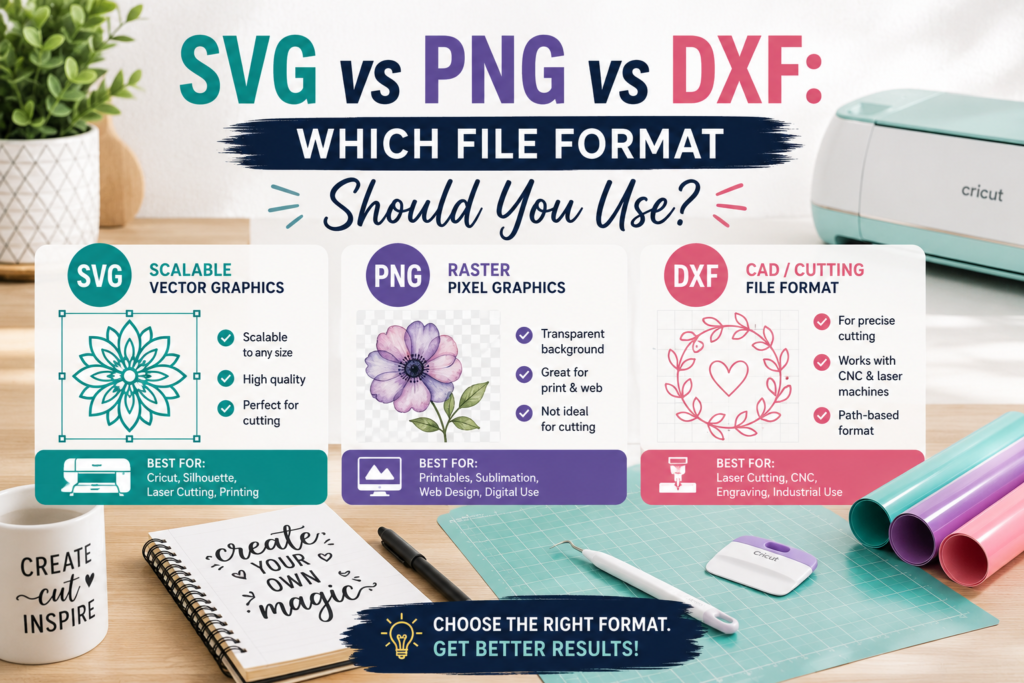
You just downloaded an SVG file from PickSVG and noticed the ZIP folder contains five different file formats — SVG, PNG, DXF, EPS, and PDF. Which one should you actually use? Does it even matter?
The short answer: yes, it matters a lot. Using the wrong file format can mean blurry cuts, lost layers, or wasted materials. But don’t worry — by the end of this guide, you’ll know exactly which format to use for every project, whether you’re cutting vinyl on your Cricut, creating sublimation prints, or designing in Silhouette Studio.
📋 Table of Contents
- Vector vs Raster: The Core Difference
- SVG — The Crafting Gold Standard
- PNG — Best for Printing & Sublimation
- DXF — The Silhouette Solution
- EPS — For Professional Designers
- PDF — For Printing & Sharing
- Complete Comparison Table
- Which Format for Your Project?
- Quick Decision Guide
- What You Get with PickSVG
- FAQ
Vector vs Raster: The Core Difference You Need to Know
Before we compare individual formats, you need to understand the two fundamental types of digital images: vector and raster. This single concept explains why some files cut cleanly and others don’t.
Vector images (SVG, DXF, EPS) use mathematical formulas to define shapes. Think of them as a set of instructions: “draw a line from point A to point B, then curve to point C.” Because they’re instruction-based, they can be scaled to any size — from a 1-inch sticker to a 6-foot wall decal — and remain perfectly sharp.
Raster images (PNG, JPG) are made of tiny colored squares called pixels. They look great at their original size, but when you enlarge them, you see those individual squares — resulting in blurry, jagged edges that don’t cut well.
Math-based — always crisp.
Pixel-based — fixed resolution.
For cutting (vinyl, iron-on, paper) → always use a vector format (SVG or DXF). For printing (sublimation, stickers, Print Then Cut) → use a high-resolution PNG. This single rule solves 90% of file format confusion.
SVG — The Crafting Gold Standard
SVG (Scalable Vector Graphics) is the most popular and versatile file format in the crafting world. If you can only use one format, this is it.
What Makes SVG Special?
- Infinite scalability — resize from tiny to massive without any quality loss
- Editable layers — change colors, hide elements, rearrange parts of the design
- Precise cut paths — your Cricut or Silhouette follows mathematically exact lines
- Tiny file size — a complex SVG is typically just 15-50KB
- Universal compatibility — works in Cricut Design Space, Silhouette Studio, Inkscape, Illustrator, and web browsers
Best Uses for SVG Files
- Vinyl cutting (adhesive vinyl and HTV/iron-on)
- Paper crafts and cardstock cutting
- Multi-layer/multi-color projects
- Any project where you need to resize the design
- Web graphics and digital design
Compatible Software
Cricut Design Space (free), Silhouette Studio Designer Edition (paid upgrade), Inkscape (free), Adobe Illustrator (paid), CorelDRAW (paid), and any modern web browser.
The free version of Silhouette Studio (Basic Edition) does not open SVG files. You need the Designer Edition upgrade ($49.99 one-time) to import SVGs. If you’re on the free version, use the DXF file instead — it works perfectly in Basic Edition.
PNG — Best for Printing & Sublimation
PNG (Portable Network Graphics) is a raster image format known for one killer feature: transparent backgrounds. This makes it essential for printing projects where you need the design without a white box around it.
What Makes PNG Useful?
- Transparent background — no white box around your design
- High-quality colors — supports millions of colors with smooth gradients
- Print-ready — perfect for sublimation, Print Then Cut, and direct printing
- Widely supported — opens on every device, phone, computer, and app
Best Uses for PNG Files
- Cricut “Print Then Cut” — the PNG gives Cricut the image to print AND the outline to cut
- Sublimation printing — for mugs, tumblers, shirts, mousepads
- Sticker making — print designs on sticker paper
- Social media graphics — use in Canva, Instagram stories, etc.
- Mockups and previews — show clients how a design will look
If you upload a PNG to Cricut Design Space for cutting (not Print Then Cut), Cricut will attempt to trace the image to create cut lines. The result is usually messy — jagged edges, missing details, and lost layers. Always use the SVG for vinyl cutting projects.
DXF — The Silhouette Solution
DXF (Drawing Exchange Format) is a vector format originally created by AutoCAD for engineering and CAD drawings. In the crafting world, it serves one crucial purpose: it’s the vector format that works in Silhouette Studio’s free Basic Edition.
When to Use DXF
- You use Silhouette Studio Basic (free version) — DXF is your only vector option
- You work with laser cutting software that prefers DXF format
- You use CAD or engineering software alongside craft machines
DXF vs SVG: Key Differences
DXF files are vector-based like SVGs, so they scale perfectly. However, DXF files don’t preserve colors — everything imports as a single color. You’ll need to manually assign colors and separate layers in Silhouette Studio. SVG files, on the other hand, retain all their color and layer information, making them much more convenient to work with.
If you’re serious about crafting with a Silhouette machine, the Designer Edition upgrade ($49.99) is well worth it. It unlocks SVG support, which saves you time by preserving colors and layers automatically. But if you’re on a budget, DXF files from PickSVG will work perfectly in the free version.
EPS — For Professional Designers
EPS (Encapsulated PostScript) is a legacy vector format widely used in professional graphic design and print production. You probably won’t use EPS files for everyday crafting, but they’re valuable if you work with professional design software.
When to Use EPS
- You design in Adobe Illustrator or CorelDRAW
- You’re sending designs to a professional print shop
- You need to heavily edit the design (EPS offers full vector editing in pro tools)
- You’re working on large-format printing (banners, signage, vehicle wraps)
EPS files don’t open directly in Cricut Design Space or Silhouette Studio, so they’re not for everyday cutting. Think of EPS as the “professional-grade backup” format.
PDF — For Printing & Sharing
PDF (Portable Document Format) can contain both vector and raster data, making it a versatile “catch-all” format. In the crafting world, PDFs are mainly useful for:
- Printing reference copies of your design
- Sharing designs with clients or collaborators who don’t have design software
- Archiving — PDFs maintain quality and are universally viewable
- Professional printing — some print shops prefer PDF format
Like EPS, PDFs aren’t directly used in Cricut or Silhouette for cutting. They’re the “backup and reference” format in your download package.
Complete File Format Comparison
Here’s a comprehensive side-by-side comparison of all five file formats included with every PickSVG download:
| Feature | .SVG | .PNG | .DXF | .EPS | |
|---|---|---|---|---|---|
| Type | Vector | Raster | Vector | Vector | Both |
| Scalable | ✓ Yes | ✗ No | ✓ Yes | ✓ Yes | ✓ Yes |
| Preserves Colors | ✓ Yes | ✓ Yes | ✗ No | ✓ Yes | ✓ Yes |
| Preserves Layers | ✓ Yes | ✗ No | ⚠ Partial | ✓ Yes | ⚠ Partial |
| Transparent BG | ✓ Yes | ✓ Yes | N/A | ✓ Yes | ⚠ Varies |
| Cricut Design Space | ✓ YesBEST | ⚠ Print Only | ✗ No | ✗ No | ✗ No |
| Silhouette Studio Free | ✗ No | ⚠ Trace | ✓ YesBEST | ✗ No | ✗ No |
| Silhouette Designer Ed. | ✓ YesBEST | ⚠ Trace | ✓ Yes | ✗ No | ✗ No |
| Adobe Illustrator | ✓ Yes | ✓ Yes | ✓ Yes | ✓ YesBEST | ✓ Yes |
| Inkscape (Free) | ✓ YesBEST | ✓ Yes | ✓ Yes | ✓ Yes | ✓ Yes |
Which File Format Should You Use? (Project-by-Project Guide)
Here’s the simple answer based on what you’re actually making:
Quick Decision Guide: Which Format Do I Need?
🎨 Get All 5 Formats with Every Download
At PickSVG, every purchase includes SVG, PNG, DXF, EPS, and PDF — so you always have the right format for any project. No guessing, no extra charges. Compatible with Cricut, Silhouette, and all cutting machines.
Browse SVG Collections →What You Get with Every PickSVG Download
When you purchase any design from PickSVG, your ZIP download includes all five file formats:
- .SVG file — for Cricut Design Space and Silhouette Studio (Designer Edition) cutting projects
- .PNG file — high-resolution 300 DPI image with transparent background for printing and sublimation
- .DXF file — for Silhouette Studio Basic Edition (free version) cutting projects
- .EPS file — for Adobe Illustrator and CorelDRAW professional editing
- .PDF file — for printing, sharing, and sending to professional print shops
Plus, every file comes with a commercial use license — meaning you can create and sell physical products like t-shirts, mugs, tumblers, signs, decals, and more using our designs.
Don’t delete the ZIP file after extracting! Keep it as a backup. Create organized folders on your computer (or cloud storage) sorted by category — holidays, quotes, animals, sports, etc. — so you can quickly find the right design and format when you need it.
✂️ Start Creating with the Right File Format
Browse thousands of premium SVG designs at PickSVG. Every download includes all 5 formats — you’ll always have the perfect file for your Cricut, Silhouette, or any other crafting tool.
Shop All SVG Files →Frequently Asked Questions

More like this
 Cricut Tutorials & Guides
Cricut Projects for Beginners: First 5 Projects to Try
You just unboxed your brand-new Cricut machine. It’s sitting on your craft table, looking sleek and full of potential —…
 Cricut Tutorials & Guides
How to Use SVG Files in Cricut Design Space: Beginner’s Guide 2026
So you’ve just unboxed your brand new Cricut machine, and now you’re staring at the screen wondering — “How do…
 Cricut Tutorials & Guides
What is an SVG File? Everything Cricut Beginners Need to Know
If you’ve recently purchased a Cricut or Silhouette cutting machine, you’ve probably seen the term “SVG file” everywhere — on…