
How to Make Custom T-Shirts with Cricut: Step-by-Step Guide 2026
 24 min read
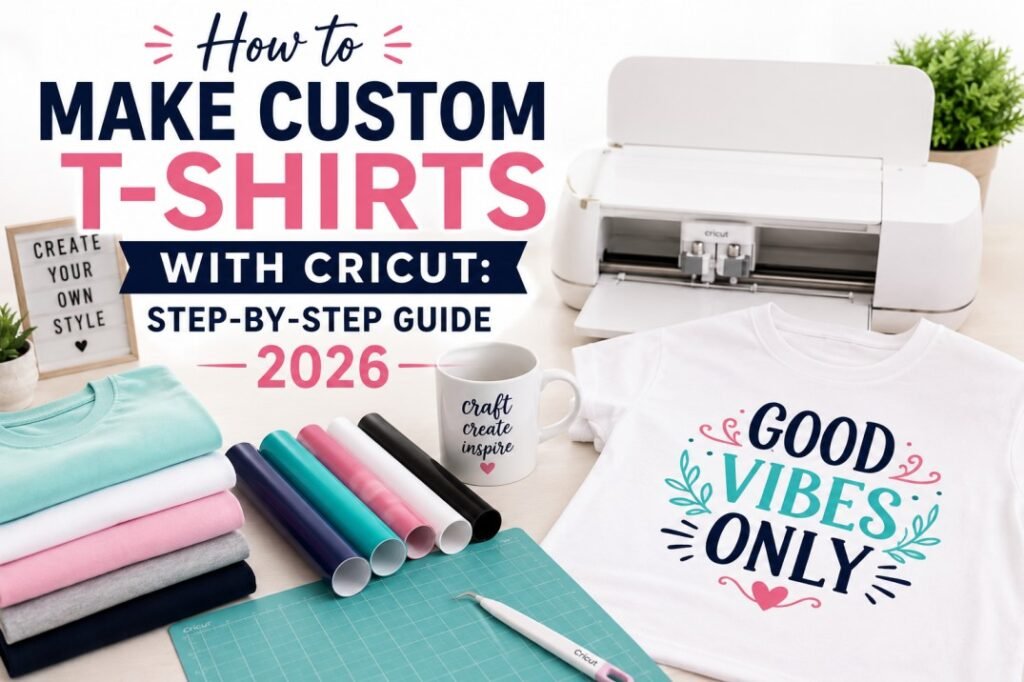
Making custom t-shirts with a Cricut is one of those projects that gets people genuinely excited about their cutting machine. There’s something deeply satisfying about designing a shirt, watching your Cricut cut it out, pressing it onto fabric, and then actually wearing something you made from scratch. Whether it’s a funny quote tee for yourself, matching family shirts for vacation, or custom merchandise for your small business — your Cricut can do it all.
The process is simpler than most beginners expect. You pick an SVG design, cut it from iron-on vinyl (HTV), and press it onto a blank shirt with heat. That’s the core of it. But there are small details at each step that make the difference between a shirt that peels off after one wash and one that lasts 50+ washes looking crisp.
This guide covers everything: the supplies you need, how to set up your design in Cricut Design Space, the correct cutting and pressing techniques, and the mistakes you absolutely want to avoid. Let’s make your first custom t-shirt.
📋 Table of Contents
- Supplies You Need to Make Cricut T-Shirts
- Understanding Iron-On Vinyl (HTV) — Types and When to Use Each
- Choosing the Right SVG Design for Your Shirt
- Setting Up Your Design in Cricut Design Space
- Cutting Iron-On Vinyl with Your Cricut
- Weeding Your Design — Removing the Excess Vinyl
- Pressing Your Design onto the Shirt
- Heat Settings Quick Reference Chart
- How to Make Multi-Color and Layered T-Shirt Designs
- 8 Common Mistakes That Ruin Cricut Shirts (and How to Avoid Them)
- 15 Custom T-Shirt Ideas to Get You Started
- How to Wash and Care for Your Cricut Shirts
- Frequently Asked Questions
Supplies You Need to Make Cricut T-Shirts
Before you start designing, let’s make sure you have everything ready. Having all your supplies laid out before you begin makes the entire process smoother and prevents those frustrating mid-project runs to the craft store.
🛒 Complete Supply List
- Cricut machine — Maker, Maker 3, Explore Air 2, Explore 3, Joy, or Joy Xtra all work
- Iron-on vinyl (HTV) — Cricut Everyday Iron-On is great for beginners; also consider Siser EasyWeed
- Blank t-shirt — 100% cotton or cotton-polyester blend (pre-washed)
- StandardGrip cutting mat (green) — for holding the vinyl during cutting
- Fine-point blade — the standard blade that comes with your Cricut
- Heat press or Cricut EasyPress — a household iron works too, but results are less consistent
- Weeding tool — for removing excess vinyl around your design
- Teflon sheet or parchment paper — to protect your design during pressing
- Lint roller — to clean the shirt surface before pressing
- SVG design file — from PickSVG or your own creation
- Measuring tape or ruler — for positioning the design on the shirt
Understanding Iron-On Vinyl (HTV) — Types and When to Use Each
Iron-on vinyl and heat transfer vinyl (HTV) are the same thing — just different names. It’s a special vinyl with a heat-activated adhesive on the back and a clear carrier sheet (also called a liner) on the front. When you apply heat and pressure, the adhesive bonds permanently to fabric.
There are several types of HTV, and choosing the right one affects how your shirt looks and how long it lasts.
| HTV Type | Best For | Finish | Layerable? | Difficulty |
|---|---|---|---|---|
| Everyday Iron-On | Most t-shirt projects | Smooth matte/slight sheen | ✅ Yes (base layer) | Beginner |
| Glitter Iron-On | Sparkle designs, holiday shirts | Sparkle/glitter texture | ✅ Top layer only | Beginner |
| Holographic Iron-On | Eye-catching accent designs | Reflective rainbow shift | ✅ Top layer only | Beginner |
| Foil Iron-On | Metallic/premium look | Shiny metallic | ✅ Top layer only | Intermediate |
| SportFlex Iron-On | Stretchy/athletic fabrics | Thin and flexible | ❌ No | Intermediate |
| Puff Iron-On | 3D raised designs | Puffy/raised texture | ❌ No | Intermediate |
| Infusible Ink | Professional full-color prints | Ink embedded in fabric | ❌ No | Advanced |
For your first shirt, start with Everyday Iron-On. It’s the most forgiving, works on virtually all fabric types, comes in dozens of colors, and gives you the classic HTV look. Once you’re comfortable with the process, experiment with glitter, holographic, or other specialty finishes to add variety to your designs.
Choosing the Right SVG Design for Your Shirt
The design you pick determines everything — how your shirt looks, how complex the cutting and weeding process will be, and how professional the finished result appears. Here’s how to choose wisely, especially when you’re starting out.
For Beginners: Keep It Simple
Your first few shirts should use single-color, bold designs with clean lines. Think simple text quotes, large monograms, or basic shapes. Avoid designs with lots of tiny details, thin lines, or small isolated pieces — these are harder to weed and more likely to lift off during washing.
For Intermediate Crafters: Multi-Color Designs
Once you’ve nailed the basics, move to multi-layer SVG designs where each color is a separate layer. These create stunning results — imagine a design with black text on a red heart, or a multi-color sports logo. Each color gets cut from a different sheet of HTV and pressed in layers.
Where to Find T-Shirt SVG Designs
PickSVG.com has thousands of SVG designs perfect for t-shirts — from trendy quotes and funny sayings to sports logos, Greek life designs, holiday themes, and more. Every design comes with a commercial use license, so you can sell the shirts you make. And every download includes SVG, PNG, DXF, EPS, and PDF formats.
👕 Find Your Perfect T-Shirt Design
Browse thousands of SVG designs made for t-shirts — quotes, sports, Greek life, holidays, and more. All with commercial use licenses.
Browse T-Shirt SVGs at PickSVG →Setting Up Your Design in Cricut Design Space
With your SVG file downloaded and unzipped (not sure how? Read our SVG upload guide), it’s time to prepare it for cutting in Cricut Design Space.
- Open Cricut Design Space and click “New Project” to start with a blank canvas.
- Click “Upload” on the left panel, then “Upload Image” → “Browse”. Navigate to your unzipped SVG file and select it. Since it’s a vector SVG, it will upload instantly with no cleanup needed.
- Name your design and click “Upload”, then select it and click “Add to Canvas.”
- Use the T-Shirt Template (optional but helpful): Click “Templates” in the upper left and select “Classic T-Shirt.” Pick the size and color that matches your blank shirt. The template sits behind your design and helps you visualize size and placement — it won’t cut.
- Resize your design. For a standard adult t-shirt, most chest designs look best at 8–10 inches wide. For a left-chest (pocket area) design, aim for about 3.5–4 inches wide. Type the exact width in the dimension box at the top, and make sure the lock icon is locked to keep proportions.
- Position the design on the template to preview how it’ll look on the actual shirt. Center it horizontally and place it about 2–3 inches below the collar for a standard chest design.
Design Sizing Guide by Shirt Placement
| Placement | Recommended Width | Position from Collar |
|---|---|---|
| Full chest (center) | 8–10 inches | 2–3 inches below collar |
| Left chest (pocket) | 3.5–4 inches | 6–8 inches from collar, slightly left |
| Full back | 10–12 inches | 3–4 inches below collar seam |
| Sleeve (left or right) | 2.5–3.5 inches | Centered on upper sleeve |
| Toddler/Kids (chest) | 5–7 inches | 2 inches below collar |
| Oversized/trendy look | 11–13 inches | 2 inches below collar |
Cutting Iron-On Vinyl with Your Cricut
This is where beginners make the most mistakes, so pay close attention to these steps. There are two critical rules to remember when cutting HTV: mirror your design and place the vinyl shiny side down on the mat.
- Click the green “Make It” button in the upper right corner of Design Space.
- On the mat preview screen, find the “Mirror” toggle and turn it ON. This flips your design horizontally so it reads correctly after being transferred to fabric. If you skip this step, your text will be backwards on the shirt.
- Check the “Material Size” dropdown and select the size that matches your vinyl sheet (usually 12″ × 12″ or 12″ × 24″).
- Click “Continue” and select your material type. For Cricut Everyday Iron-On, search for and select “Everyday Iron-On” from the materials list.
- Place your HTV on the cutting mat shiny/glossy side DOWN. The shiny side is the carrier sheet (liner). The dull/matte side facing up is the side the blade cuts. Press it firmly onto the mat — use a brayer or scraper to remove any air bubbles.
- Load the mat into your Cricut machine by aligning it with the guides and pressing the load/feed button.
- Press the flashing Cricut button to start cutting.
- When cutting is finished, press the unload button and carefully remove the mat from the machine.
1. ALWAYS mirror. If you forget to mirror, your entire design will be reversed on the shirt. Text will be unreadable. This is the #1 beginner mistake.
2. ALWAYS place vinyl shiny side down. You cut HTV from the back. If you put it shiny side up, you’ll cut through the carrier sheet instead of the vinyl.
Weeding Your Design — Removing the Excess Vinyl
Weeding is the process of peeling away all the excess vinyl that isn’t part of your design, leaving only your design on the clear carrier sheet. This is what makes HTV projects so satisfying — watching your design emerge as you pull away the surrounding material.
- Start by gently peeling the excess HTV from the edges of the carrier sheet. Peel slowly at a 45-degree angle to avoid lifting your design.
- Use your weeding tool (the hooked pick tool) to remove small pieces inside letters and enclosed shapes. For example, the centers of letters like O, A, B, D, P, Q, and R all have small pieces that need to be weeded out.
- Work from the outside in, removing larger sections first, then going back for the small details.
- Once all excess is removed, hold your design up to a light to double-check that every unwanted piece has been removed. Missed pieces will transfer onto your shirt.
Pressing Your Design onto the Shirt
This is the moment everything comes together. Proper pressing technique is what determines whether your design lasts 5 washes or 50. Follow these steps exactly for the best results.
Using a Cricut EasyPress or Heat Press
- Preheat your press to the correct temperature for your HTV type (see the chart below). For Cricut Everyday Iron-On on cotton, set it to 315°F (157°C).
- Prepare the shirt: Lay it flat on a hard, heat-resistant surface (an EasyPress mat, thick towel folded in half, or a piece of cardboard inside a pillowcase). Place a piece of cardboard or parchment paper inside the shirt between the front and back layers — this prevents the heat from bleeding through to the back.
- Lint roll the shirt where you’ll place the design. Even tiny fibers can create bubbles or prevent the vinyl from sticking.
- Pre-press the shirt for 5 seconds to remove moisture and wrinkles. This step sounds unnecessary but genuinely improves adhesion.
- Position your weeded design on the shirt, carrier sheet side up (shiny side up). Use a measuring tape to center it. A helpful trick: fold the shirt in half vertically to find the center, make a small mark with tape, then align your design.
- Cover with a Teflon sheet or parchment paper for extra protection.
- Press with firm, even pressure for the recommended time — typically 30 seconds for Everyday Iron-On on cotton. Use two hands and lean your body weight into it (about 15–20 lbs of pressure).
- Remove the press and wait for the carrier sheet to cool to warm/room temperature before peeling (this is called a “cool peel” for most standard HTV). Peel slowly at a 45-degree angle.
- If any edges lift, place the Teflon sheet back over the area and press again for 5–10 more seconds.
Using a Household Iron (When You Don’t Have an EasyPress)
A regular household iron can work, but it requires more care because of its uneven heat distribution and steam holes. Here’s how to get the best results:
- Set the iron to the Cotton/Linen setting (highest temperature, NO steam). Turn the steam setting completely off and empty the water reservoir.
- Pre-press the shirt for 10–15 seconds to flatten and warm the fabric.
- Place your design on the shirt, cover with parchment paper, and press firmly for 30 seconds. Don’t move the iron back and forth like you’re ironing — hold it down with steady pressure in one spot.
- If the design is larger than the iron, press in sections with slight overlap, holding each section for the full 30 seconds.
- Flip the shirt over and press from the back side for another 15 seconds for extra adhesion.
- Cool peel the carrier sheet once it reaches room temperature.
Heat Settings Quick Reference Chart
Getting the temperature and time right is crucial. Too little heat and the vinyl won’t bond properly. Too much heat and you risk scorching the shirt or melting the HTV. Use this chart as a quick reference — for the most current and specific settings, always check the official Cricut Heat Guide.
| HTV Type | Temperature | Time | Pressure | Peel |
|---|---|---|---|---|
| Everyday Iron-On | 315°F / 157°C | 30 seconds | Firm | Cool peel |
| Glitter Iron-On | 315°F / 157°C | 30 seconds | Firm | Cool peel |
| Holographic Iron-On | 315°F / 157°C | 30 seconds | Firm | Cool peel |
| Foil Iron-On | 315°F / 157°C | 30 seconds | Firm | Cool peel |
| SportFlex Iron-On | 305°F / 152°C | 30 seconds | Light | Cool peel |
| Puff Iron-On | 315°F / 157°C | 30 seconds | Light (no pressing on top) | Cool peel |
Note: These are approximate settings for cotton fabrics using Cricut brand HTV with an EasyPress. Settings may vary for different fabric types (polyester, nylon, blends) and different HTV brands. Always consult the manufacturer’s guidelines for your specific materials.
How to Make Multi-Color and Layered T-Shirt Designs
Once you’re comfortable with single-color shirts, multi-color designs take your projects to the next level. A layered design uses multiple colors of HTV stacked on top of each other to create a complex, eye-catching result.
The Process
- Upload your multi-layer SVG to Cricut Design Space. Each color in the design should appear as a separate layer in the Layers panel.
- Click “Make It.” Design Space will automatically separate each color onto its own cutting mat.
- Mirror ALL mats (every color). Cut each color from its corresponding sheet of HTV.
- Weed each color separately.
- Press the bottom layer first. The largest or background layer goes down first. Press it for the full recommended time and peel the carrier sheet.
- Position and press the next layer on top. Use the design as a guide to align it correctly. Press for the recommended time. Cover any previously applied layers with a Teflon sheet to protect them.
- Repeat for each additional layer, working from the bottom up.
- After all layers are applied, do a final press over the entire design for 10–15 seconds to ensure all layers are fully bonded.
🎨 Multi-Color SVG Designs Ready to Cut
Explore layered SVG designs with perfect color separation — ready for multi-color Cricut t-shirt projects.
Shop Multi-Layer SVGs at PickSVG →8 Common Mistakes That Ruin Cricut Shirts (and How to Avoid Them)
1. Forgetting to Mirror the Design
This is the king of all HTV mistakes. Your text will be backwards and your vinyl is wasted. Fix: Make it a habit to check the mirror toggle every single time before clicking “Continue” on the mat preview. Some crafters put a sticky note on their machine that says “DID YOU MIRROR?”
2. Placing Vinyl Shiny Side Up on the Mat
If the shiny carrier sheet is facing up, the blade cuts through the carrier instead of the vinyl. Fix: Always shiny/glossy side down on the mat, dull/matte side facing up toward the blade.
3. Not Pre-Washing the Shirt
Factory coatings and sizing chemicals create an invisible barrier that prevents HTV from bonding properly. Fix: Wash and dry all blank shirts before applying vinyl. No fabric softener.
4. Pressing on a Soft Surface
Pressing on a bed, towel pile, or ironing board (too much cushion) results in uneven heat and pressure. Fix: Use a hard, flat surface — an EasyPress mat, wooden cutting board, or even a tile floor. The firm surface ensures consistent pressure across the entire design.
5. Peeling the Carrier Sheet Too Early (Hot Peel When It Should Be Cool)
Most standard HTV requires a cool peel. Peeling while hot can lift the vinyl right off the shirt or cause it to stretch and distort. Fix: Wait until the carrier sheet is cool to the touch before peeling. Be patient.
6. Using a Dull Blade
A dull blade tears the vinyl instead of cleanly slicing it, resulting in ragged edges, incomplete cuts, and weeding nightmares. Fix: If your cuts are looking inconsistent, swap in a fresh blade. Cricut blades are inexpensive and should be replaced regularly, especially if you cut frequently.
7. Skipping the Pre-Press
Pressing vinyl onto a cold, slightly damp shirt dramatically reduces adhesion. Fix: Always pre-press your shirt for 5 seconds before placing the design. This removes moisture and gives the adhesive a warm surface to grab onto.
8. Not Applying Enough Pressure
Barely resting the EasyPress on the shirt isn’t enough. HTV requires real pressure to activate the adhesive fully. Fix: Use two hands, lean your body weight into the press (15–20 lbs), and maintain steady pressure for the entire pressing duration. This single tip fixes more “peeling” issues than anything else.
15 Custom T-Shirt Ideas to Get You Started
Need some creative inspiration for your first (or next) Cricut shirt project? Here are 15 ideas ranging from beginner-friendly single-color designs to more advanced multi-layer creations.
Beginner-Friendly (Single Color)
1. “Mom Life” or “Dad Life” quote tee — A classic text-based design in one color. Great first project because it’s simple to weed and press.
2. Personalized name shirts for kids — Cut each child’s name in their favorite color of HTV. Quick, easy, and kids love wearing their name.
3. Funny coffee quotes — “But First, Coffee” or “Fueled by Caffeine and Chaos.” Text-only SVGs are the easiest to work with.
4. Sports team number tee — A jersey-style number on the back. Simple and impactful.
5. Holiday-themed shirts — “Merry & Bright,” “Thankful,” or “Lucky” (for St. Patrick’s Day). Seasonal shirts are great sellers at craft fairs.
Intermediate (Multi-Color or Specialty Vinyl)
6. Greek life letters with sorority/fraternity colors — Multi-color layered letters make amazing gifts for Greek organizations. PickSVG has a full Greek life SVG collection with ready-to-cut designs.
7. Glitter monogram tee — A large initial in glitter HTV on a solid-colored tee. Simple design, premium finish.
8. Multi-color sports logo — Layer two or three colors to recreate team-inspired designs. Remember to check licensing requirements for official logos.
9. Matching family vacation shirts — “Beach Squad” or “[Family Name] Adventure 2026” with a small graphic element. Make one master design and resize for adults, kids, and toddlers.
10. Birthday party shirts — “Birthday Girl/Boy” in glitter, or age-specific designs like “This Queen is 30.” Party hosts love custom shirts for their celebrations.
Advanced (Multi-Layer / Creative Techniques)
11. Layered floral design with 3+ colors — Build a beautiful multi-layer flower arrangement with each petal layer in a different shade.
12. Reverse weed (knockout) design — A technique where you cut a design out of a large piece of HTV, creating a “window” that shows the shirt color through the vinyl. Modern and trendy.
13. Glow-in-the-dark Halloween tee — Use Cricut’s glow-in-the-dark HTV for spooky season shirts that charge in the light and glow in the dark.
14. Infusible Ink photo-quality shirt — For full-color, photographic designs that feel like part of the fabric rather than a layer on top. Requires Infusible Ink sheets and compatible blanks.
15. Puff vinyl 3D design — Puff iron-on expands when heated, creating a raised, puffy texture. Great for retro-style designs and bold lettering.
How to Wash and Care for Your Cricut Shirts
A well-pressed HTV shirt can last 50+ washes looking great — but only if you care for it properly. Here’s how to keep your custom shirts looking like new for as long as possible.
Wait 24 hours before washing. After pressing, give the adhesive a full 24 hours to fully cure and bond with the fabric fibers before the first wash. This significantly improves long-term durability.
Turn the shirt inside out before washing. This protects the vinyl surface from rubbing against other clothes and the inside of the washing machine drum.
Wash in cold water on a gentle cycle. Hot water can weaken the adhesive bond over time. Cold water is gentler on both the vinyl and the shirt fabric.
Do not use fabric softener. Fabric softener leaves a coating on the vinyl that can cause it to peel. Skip the dryer sheets too.
Tumble dry on low heat or hang dry. High dryer heat can re-activate the adhesive and cause the vinyl to shift, bubble, or peel at the edges. Low heat or air drying is much safer.
Never iron directly on the vinyl. If the shirt needs ironing, turn it inside out and iron from the back, or place parchment paper over the design before ironing. Direct heat from an iron can melt or distort the HTV.
Frequently Asked Questions
Which Cricut machine is best for making t-shirts?
All current Cricut machines — the Maker 3, Maker, Explore 3, Explore Air 2, Joy Xtra, and Joy — can cut iron-on vinyl for t-shirts. The Maker and Explore series are the most popular choices because they cut designs up to 11.5 inches wide, which covers most shirt designs. The Cricut Joy is great for smaller designs (up to 4.5 inches wide) like pocket logos or sleeve prints. For serious shirt-making, the Maker 3 or Explore 3 with Smart Materials offers the most versatility.
Can I make custom t-shirts with Cricut to sell?
Yes! Selling Cricut-made t-shirts is one of the most popular craft businesses. The key requirement is using SVG designs with a commercial use license. Personal use SVGs cannot legally be used for items you sell. All SVG files from PickSVG include commercial use licenses, making them perfect for craft businesses. Also be careful with trademarked logos, brand names, and licensed characters — these require separate licensing agreements regardless of where you got the SVG.
What type of blank t-shirt is best for Cricut iron-on?
For standard HTV (Everyday Iron-On), 100% cotton t-shirts give the best adhesion and longest-lasting results. Cotton-polyester blends (like 50/50 or 60/40) also work well. Avoid shirts with heavy moisture-wicking coatings or extremely high polyester content, as HTV may not bond as strongly. For Infusible Ink, you need high-polyester-content shirts (65%+ polyester) or Cricut’s Infusible Ink compatible blanks. Popular blank shirt brands include Bella+Canvas, Gildan, Next Level, and Comfort Colors.
Why is my iron-on vinyl peeling off after washing?
The most common causes are insufficient heat, not enough pressure, not pre-washing the shirt, or washing improperly. To fix: make sure you’re pressing at the correct temperature for the full recommended time with firm pressure (15–20 lbs). Pre-wash shirts before applying HTV. When washing finished shirts, turn them inside out, use cold water, and tumble dry on low. Also wait at least 24 hours after pressing before the first wash.
Do I need an EasyPress or can I use a regular iron?
You can use a regular household iron, but results will be less consistent. Regular irons have steam holes that create uneven heat distribution, and it’s harder to maintain steady pressure and temperature. An EasyPress or heat press provides perfectly even heat across the entire plate, precise temperature control, and a timer — resulting in much more reliable, professional-quality transfers. If you plan to make shirts regularly, an EasyPress is one of the best investments you can make.
Can I layer different colors of HTV on one shirt?
Yes, layering HTV is how you create multi-color designs. The key rules are: use Everyday Iron-On for base layers, place specialty vinyl (glitter, holographic, foil) only on top, keep layers to 3 maximum for best results, and press each layer separately before adding the next. Cover previously pressed layers with a Teflon sheet when pressing new layers on top to protect them.
What SVG file format do I need for Cricut t-shirt designs?
For cutting HTV with a Cricut, you need an SVG file. This is the vector format that Cricut Design Space uses for cut-path designs. SVG files contain separate layers for each color, scale without losing quality, and upload to Design Space with no image cleanup required. If you’re doing a Print Then Cut project (printing a full-color image and cutting around it), you’ll use a PNG file instead. PickSVG includes both SVG and PNG formats with every design download.
How big should a t-shirt design be for an adult shirt?
For a standard center-chest design on an adult shirt, 8–10 inches wide works best for most designs. Left-chest (pocket area) designs should be about 3.5–4 inches wide. Full-back designs can go 10–12 inches wide. For kids’ shirts, scale down to 5–7 inches for chest designs. Use the T-Shirt Template feature in Cricut Design Space to visualize your design on a shirt before cutting to get the sizing just right.
Can I use SVG files on dark-colored t-shirts?
Yes! SVG files work on shirts of any color — you simply choose your HTV color to complement or contrast the shirt color. For dark shirts, white, gold, silver, and neon HTV colors stand out beautifully. The SVG file itself is just a cut path; the color comes from whatever vinyl you load into your Cricut. This is different from Print Then Cut, where dark shirts require special “dark fabric” transfer paper.
How long does iron-on vinyl last on a t-shirt?
When properly applied and cared for, quality iron-on vinyl (like Cricut Everyday Iron-On or Siser EasyWeed) can last 50+ washes without peeling, cracking, or fading. The key factors are correct pressing temperature and time, firm pressure during application, proper curing (waiting 24 hours before first wash), and gentle washing care (cold water, inside out, low heat dry). Shirts worn and washed casually can easily last years.
Start Making Custom T-Shirts Today
Making custom t-shirts with your Cricut isn’t just a craft project — it’s a skill that opens up a world of possibilities. You can make personalized gifts that people actually love. You can create matching shirts for events, teams, and family trips. You can even build a legitimate business selling custom apparel on Etsy, at craft fairs, or through your own shop.
The process follows a simple flow: find a great SVG design → cut it from HTV → weed the excess → press it onto a shirt. The details matter — mirror your design, place vinyl shiny side down, press at the right temperature, and care for your shirts properly — but once you’ve done it twice, it becomes muscle memory.
Ready for your first design? Browse PickSVG’s t-shirt SVG collections to find professionally designed files with commercial use licenses, all five file formats, and instant download. From quotes and monograms to sports, Greek life, holidays, and everything in between — your next custom t-shirt is just a few clicks away.
Now go make something awesome. 👕

More like this
 SVG Craft Projects
Greek Life Crafting: Sorority & Fraternity DIY Gifts, Shirts & Ideas
Greek life runs on tradition — and few traditions are as beloved as making something with your letters on it.…
 SVG Craft Projects
Personalized Gift Ideas Using Your Cricut Machine
There’s something about a personalized gift that store-bought stuff just can’t touch. You know what I mean — that moment…
 SVG Craft Projects
DIY Tumbler Designs: Best SVG Files and Techniques
Custom tumblers are one of the most popular crafting projects right now — and for good reason. A well-made tumbler…