
How to Use SVG Files in Cricut Design Space: Beginner’s Guide 2026
 23 min read
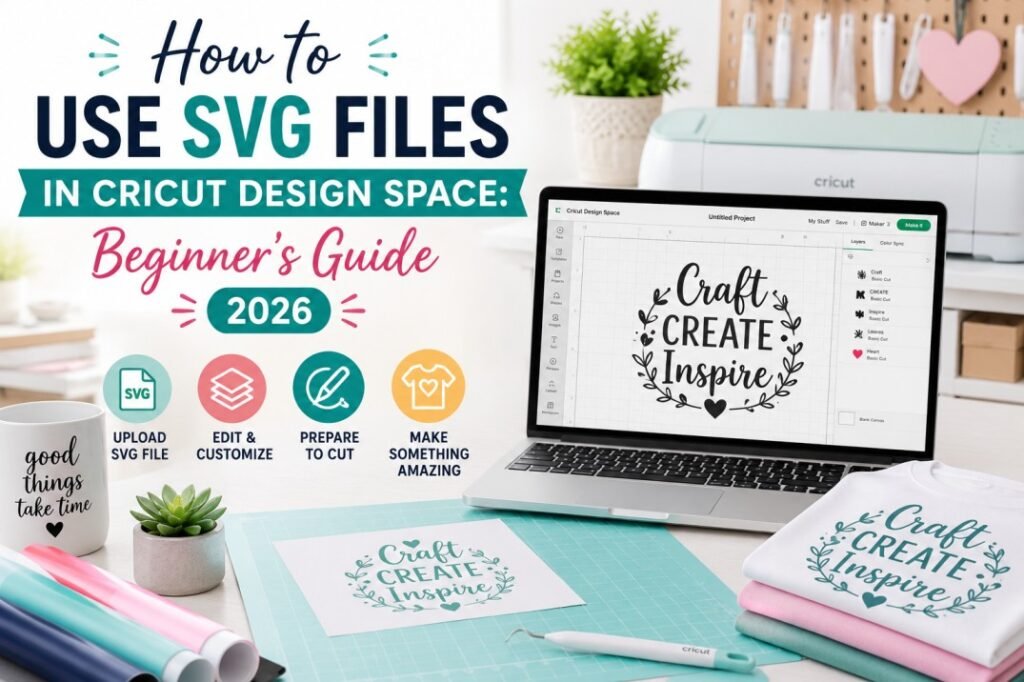
So you’ve just unboxed your brand new Cricut machine, and now you’re staring at the screen wondering — “How do I actually use those SVG files everyone talks about?” You’re not alone. Thousands of new crafters face this exact same moment every single day, and the good news is that using SVG files in Cricut Design Space is much easier than you think.
Whether you own a Cricut Maker, Cricut Explore Air, or the Cricut Joy, this guide will walk you through everything you need to know about SVG files — from understanding what they are, to downloading, uploading, editing, and cutting your very first project. By the end, you’ll be using SVG files like a seasoned crafter.
Let’s dive in.
📋 Table of Contents
- What Is an SVG File and Why Does Your Cricut Need It?
- SVG vs PNG vs DXF — Which File Format Should You Use?
- Where to Find SVG Files for Your Cricut Projects
- How to Download SVG Files (and Unzip Them)
- How to Upload SVG Files in Cricut Design Space (Desktop)
- How to Upload SVG Files on iPhone, iPad & Android
- How to Edit and Customize SVG Files in Design Space
- How to Prepare Your SVG for Cutting
- 7 Common SVG Problems and How to Fix Them
- 5 Easy First Projects for SVG Beginners
- Pro Tips for Working with SVG Files
- Frequently Asked Questions
What Is an SVG File and Why Does Your Cricut Need It?
SVG stands for Scalable Vector Graphics. Unlike regular photos on your phone (which are made of tiny pixels), SVG files are built using mathematical paths and shapes. This means you can resize an SVG file from the size of a postage stamp to the size of a wall poster, and it will still look perfectly sharp — no blurriness, no jagged edges, nothing.
This is exactly why SVG files are the gold standard for Cricut projects. When your Cricut machine reads an SVG file, it follows those precise mathematical paths to cut your material with pinpoint accuracy. Every curve, every letter, every detail is clean because the machine knows exactly where to go.
Think of it this way: a regular image (like a JPEG) is like a painting — it looks great from a distance, but zoom in and it gets blurry. An SVG file is more like a blueprint — no matter how much you zoom in, every line stays perfectly crisp.
SVG files also come with another massive advantage for crafters: layers. A well-designed SVG file separates different colors and elements into individual layers. So if you have a design with red, white, and blue parts, each color sits on its own layer, and Cricut Design Space will automatically prompt you to cut each color separately. This makes multi-color projects incredibly straightforward.
SVG vs PNG vs DXF — Which File Format Should You Use?
When you download design files from any marketplace (including PickSVG), you’ll typically receive multiple file formats in your download. This can be confusing for beginners, so here’s a clear breakdown of each format and when you should use it.
| File Format | Best For | Scalable? | Layers? | Cricut Compatible? |
|---|---|---|---|---|
| SVG | Cutting projects (vinyl, cardstock, HTV) | ✅ Yes | ✅ Yes | ✅ Yes |
| PNG | Print Then Cut, sublimation | ❌ No | ❌ No | ✅ Yes |
| DXF | Older cutting software (Silhouette) | ✅ Yes | ⚠️ Limited | ✅ Yes |
| JPEG/JPG | Print only (not ideal for cutting) | ❌ No | ❌ No | ✅ Yes (basic upload) |
| EPS | Professional design software (Illustrator) | ✅ Yes | ✅ Yes | ❌ No (not directly) |
The bottom line? If you’re using a Cricut machine for cutting vinyl, HTV (heat transfer vinyl), cardstock, or any other material — always reach for the SVG file. It gives you the cleanest cuts, the most flexibility for resizing, and the easiest experience inside Cricut Design Space. Use PNG files only when you’re doing Print Then Cut projects where you need a full-color printed image.
Where to Find SVG Files for Your Cricut Projects
Now that you know what SVG files are and why they matter, the next question is obvious: where do you actually find great designs? There are both free and premium sources, and each has its place depending on what you’re making.
Premium SVG Marketplaces
Premium SVG files are professionally designed, come with commercial use licenses (so you can sell the products you make), and are thoroughly tested for clean cuts. If you’re making items to sell at craft fairs, on Etsy, or for your small business, premium files are the way to go.
PickSVG.com offers a massive library of premium SVG designs across popular categories — from Greek life and sorority designs to sports, fashion, holidays, and more. Every file comes with all 5 file formats (SVG, PNG, DXF, EPS, and PDF), includes a commercial use license, and is tested for compatibility with Cricut, Silhouette, and other major cutting machines.
🎨 Ready to Start Crafting?
Browse thousands of premium SVG files designed for Cricut — all with commercial use licenses and instant download.
Browse SVG Collections at PickSVG →Free SVG Sources
Free SVGs are perfect for practice and personal projects. Many craft bloggers offer free designs on their websites. Just be careful to check the licensing — most free SVGs are for personal use only and cannot be used for products you sell. Always read the license terms before using any free file commercially.
How to Download SVG Files (and Unzip Them)
Here’s something that trips up almost every beginner: SVG files almost always come inside a ZIP folder. A ZIP folder is a compressed package that bundles multiple files together into one download. You cannot upload a ZIP file directly into Cricut Design Space — you need to extract (unzip) it first.
This is the number one reason beginners get the “incompatible file” error in Design Space. Let’s make sure that doesn’t happen to you.
How to Unzip on Windows
- Go to your Downloads folder and find the ZIP file you just downloaded. It will have a small zipper icon on the folder.
- Right-click on the ZIP file and select “Extract All…” from the menu.
- Choose where you want to save the extracted files (the default location is fine), then click “Extract.”
- A new folder will appear — open it and you’ll see your SVG file along with other formats like PNG and DXF. The SVG file is the one you’ll upload to Design Space.
How to Unzip on Mac
- Find the ZIP file in your Downloads folder (or wherever you saved it).
- Simply double-click the ZIP file. macOS will automatically extract it.
- A new unzipped folder will appear right next to the ZIP file. Open it to find your SVG.
How to Unzip on iPhone / iPad
- Open the Files app on your device.
- Navigate to your downloaded ZIP file (usually in the “Downloads” section or “On My iPhone”).
- Tap the ZIP file. iOS will automatically extract the contents into a new folder.
- Open the folder — your SVG file is ready to use.
How to Unzip on Android
- Open your Files or My Files app.
- Find the ZIP file in your Downloads folder.
- Tap the ZIP file and select “Extract” or “Extract here.”
- The extracted files will appear in the same folder or a new subfolder. Look for the .svg file.
How to Upload SVG Files in Cricut Design Space (Desktop)
This is the main event — the step-by-step process for getting your SVG files into Cricut Design Space on a computer or laptop. These steps work on both Windows and Mac.
- Open Cricut Design Space on your computer and click “New Project” to start with a blank canvas. If you haven’t installed it yet, download it free from design.cricut.com.
- On the left side panel, click the “Upload” button. This opens the upload manager where you can bring in your own images and designs.
- Click “Upload Image” on the next screen. You’ll see two options — Upload Image or Upload Pattern. Choose Upload Image.
- Click “Browse” to open your file explorer, or simply drag and drop your SVG file from another window directly onto the upload area.
- Navigate to the folder where you saved your unzipped SVG file. Select the file that ends in .svg and click “Open.”
- Because SVG is a vector file, Cricut Design Space will recognize its cut paths automatically — no cleanup needed. You’ll see a preview of your design. Give it a name and add tags if you want to find it easily later, then click “Upload” (or “Save” depending on your version).
- Your SVG is now in your Uploaded Images library. Select it and click “Add to Canvas” (or “Insert Images”) to place it on your project canvas.
- Your design will appear on the canvas, ready to resize, edit, and cut. 🎉
How to Upload SVG Files on iPhone, iPad & Android
The mobile experience in Cricut Design Space is slightly different from desktop, but uploading SVG files is still very doable. Here’s how it works on your phone or tablet.
On iPhone and iPad (iOS)
- First, download and unzip your SVG file using the Files app (see the steps above).
- Open the Cricut Design Space app and tap the “+” button to start a new project.
- Tap the “Upload” icon at the bottom of the screen.
- Tap “Upload Image”, then “Browse Files.”
- Navigate to the folder where your unzipped SVG is saved. Tap the .svg file to select it.
- The SVG will upload automatically. Name it, then tap “Upload” to save it to your library.
- Select the image and tap “Add to Canvas.”
On Android
- Download and extract the ZIP file using your file manager app.
- Open the Cricut Design Space app and start a new project.
- Tap the “Upload” button on the bottom toolbar.
- Select “Upload Image” and browse to the location of your SVG file.
- Select the .svg file, name it, and tap “Upload.”
- Insert the design into your canvas and you’re ready to go.
How to Edit and Customize SVG Files in Design Space
Once your SVG is on the canvas, the real fun begins. Cricut Design Space gives you a range of tools to customize your designs before cutting. Here’s what you can do and how to do it.
Resizing Your Design
Click on your design, then drag the corner handles to resize it. Make sure the lock icon between the width and height measurements is locked (it should look like a closed padlock). This keeps your design proportional. If you need a specific size, type the exact dimensions in the width and height boxes at the top of the screen.
Changing Colors
Want to change the color of a specific layer? Open the Layers panel on the right side. Click on the layer you want to change, then click the colored square next to it. Choose your new color from the palette. This doesn’t just change what you see on screen — it also affects which mat Design Space assigns that layer to when you click “Make It.”
Ungrouping Layers
Most SVG files arrive as a grouped design. To move, resize, or edit individual pieces, you need to ungroup them first. Select the design, then click the “Ungroup” button at the top of the Layers panel (or right-click and select Ungroup). Now you can manipulate each piece independently.
Using Attach, Weld, and Slice
These three tools are essential for SVG editing in Design Space:
🔗 Attach
Keeps multiple pieces in the same position on the cutting mat. Use this when you have text and a shape that need to stay aligned during cutting. Select both layers and click “Attach” at the bottom of the Layers panel.
🔥 Weld
Permanently merges overlapping shapes into one single shape. Use this when you want text or shapes to join together (like connecting cursive letters). Select the overlapping layers and click “Weld.” This action cannot be undone, so save a copy of your project first.
✂️ Slice
Cuts one shape out of another, like a cookie cutter. Use this to cut text out of a shape or create custom designs by combining two layers. Select exactly two layers and click “Slice.” The result gives you the cut-out piece and the remaining piece as separate layers.
Hiding Layers
Don’t want to cut a particular part of the design? You don’t have to delete it. In the Layers panel, hover over the layer and click the eye icon to hide it. Hidden layers won’t be sent to the cutting mat. This is useful when an SVG includes a design guide or background element you don’t need.
🎯 Find the Perfect Design for Your Next Project
Explore trending SVG collections — Greek life, sports, holidays, fashion, and thousands more.
Shop SVG Files at PickSVG →How to Prepare Your SVG for Cutting
Your design is uploaded, resized, and customized — now it’s time to actually cut it. Here’s how to go from canvas to finished cut with confidence.
- Review your Layers panel. Make sure every layer is the correct color, the right size, and nothing is hidden that should be visible (or vice versa). Each color represents a different cutting mat and material.
- Click the green “Make It” button in the upper right corner. Design Space will separate your design by color/layer and show you how each piece will be arranged on the cutting mat.
- Check the mat preview. You’ll see each mat listed by material color. Make sure your design pieces fit within your material size. You can adjust the “Material Size” dropdown if you’re using something other than 12″ × 12″ (for example, 12″ × 24″ or 8.5″ × 11″).
- If needed, toggle “Mirror” to ON for any mats where you’re cutting iron-on/HTV material. This flips the design so it reads correctly when transferred. Forgetting to mirror HTV is one of the most common beginner mistakes!
- Click “Continue” and select your material type from the list (vinyl, cardstock, iron-on, etc.). If you have a Cricut with a dial, set it to the appropriate material setting.
- Load your material onto the cutting mat (sticky side up, material pressed firmly), and feed the mat into your Cricut machine.
- Press the flashing Cricut button on your machine to start cutting. Watch the magic happen!
- Once cutting is complete, carefully unload the mat and weed away the excess material using a weeding tool.
7 Common SVG Problems and How to Fix Them
Even experienced crafters run into issues. Here are the most common SVG problems and exactly how to solve them.
1. “Incompatible File” Error When Uploading
Cause: You’re trying to upload a ZIP file instead of the actual SVG file inside it.
Fix: Extract/unzip the downloaded folder first, then navigate inside the unzipped folder and select the file ending in .svg. This is the single most common mistake — and the easiest to fix.
2. Design Appears as One Solid Shape (No Layers)
Cause: Some SVG files are designed as a single-layer cut file, or the file was flattened before saving.
Fix: If the design should have multiple layers, try downloading the file again. If it’s designed as a single layer (common with text-based designs), that’s intentional and you’ll cut it from one color of material.
3. Design Is Huge or Tiny on the Canvas
Cause: The SVG was created at a different size than you expected.
Fix: Simply resize it using the handles or by typing exact dimensions. Because SVG files are vector-based, resizing won’t affect quality at all — that’s the whole point of the format.
4. Parts of the Design Are Missing
Cause: Layers might be hidden, or the design uses white-colored elements on a white canvas background.
Fix: Check the Layers panel for hidden layers (look for the eye icon). Also, try changing the canvas background color temporarily to see if there are white elements you’re missing.
5. Cricut Cuts Through the Material Completely
Cause: Blade pressure is set too high for your material, or you selected the wrong material type.
Fix: Double-check that you selected the correct material setting in Design Space. For vinyl, make sure you’re using “Vinyl” not “Cardstock.” You can also use the custom pressure setting to reduce blade pressure manually.
6. Design Doesn’t Cut Cleanly — Jagged or Torn Edges
Cause: Dull blade, incorrect material setting, or the material shifted on the mat.
Fix: Replace your blade (Cricut blades should be replaced regularly), make sure your material is firmly pressed onto the mat with no bubbles or wrinkles, and confirm the correct material setting.
7. SVG File Won’t Open or Downloads as a Web Page
Cause: Your browser is trying to display the SVG as an image instead of downloading it.
Fix: Right-click the download link and choose “Save link as…” or “Download linked file” instead of clicking directly. Save it as a .svg file to your computer.
5 Easy First Projects for SVG Beginners
Now that you know the technical side, here are five beginner-friendly projects to build your confidence. Each one uses basic SVG skills and common materials you can find at any craft store.
1. Personalized Vinyl Decal for a Water Bottle or Tumbler
This is the perfect starter project. Grab a simple name or monogram SVG, a sheet of adhesive vinyl, and your favorite tumbler. The design is usually one layer, one color, and the application process teaches you the fundamentals of weeding and transfer tape.
2. Custom Iron-On T-Shirt
Pick a fun quote or design SVG, cut it from heat transfer vinyl (HTV), and iron it onto a plain t-shirt. Remember to mirror your design before cutting HTV! This project teaches you the iron-on workflow and gives you a wearable result you’ll be proud of.
3. Paper Greeting Card
Use a multi-layer SVG designed for cardstock to create a beautiful layered greeting card. This teaches you how to work with multiple layers, different colors of material, and precise alignment when assembling the final piece.
4. Wall Decal or Window Sticker
A simple quote or design cut from vinyl makes a great wall accent or window decoration. This project helps you practice working with larger designs and applying vinyl to flat surfaces.
5. Gift Labels and Tags
Cut labels, tags, and small decorative pieces from cardstock or sticker paper. These make perfect personalized additions to gifts and teach you how to handle smaller, more intricate cuts.
✨ Need SVG Files for Your First Project?
PickSVG has thousands of beginner-friendly designs perfect for your first Cricut projects. Every design includes SVG, PNG, DXF, EPS, and PDF formats.
Explore Beginner-Friendly SVGs →Pro Tips for Working with SVG Files
After working with hundreds of SVG files, here are the tips that will save you the most time, materials, and frustration.
Always do a test cut. Before cutting into expensive vinyl or specialty material, cut a small section first on a scrap piece. This confirms your blade, pressure, and material settings are dialed in perfectly.
Keep your blade sharp. A dull blade causes more problems than anything else — tearing, incomplete cuts, and jagged edges. If your cuts are getting inconsistent, swap in a fresh blade before troubleshooting anything else.
Use “Attach” before clicking Make It. If your design has multiple pieces that need to stay in a specific arrangement on the mat, select them all and click Attach. Without this, Design Space will rearrange pieces for material efficiency, which might not be what you want.
Save your work frequently. Cricut Design Space can occasionally glitch or lose connection. Save your project after every significant change. It only takes a second and prevents losing your work.
Learn keyboard shortcuts. Ctrl+C (copy), Ctrl+V (paste), Ctrl+Z (undo), and Ctrl+S (save) work in Design Space and will dramatically speed up your workflow.
Organize your uploaded images. Use tags and clear naming conventions when uploading SVGs to your library. “Floral-monogram-frame-pink” is much easier to find later than “upload-47.” Future you will be grateful.
Check licensing before selling. If you plan to sell products made with SVG designs, make sure the file comes with a commercial use license. Personal use licenses don’t cover items you sell — and this matters legally. PickSVG includes commercial use licenses with all designs, making it simple for craft business owners.
Frequently Asked Questions
What is an SVG file for Cricut?
An SVG (Scalable Vector Graphics) file is a digital design file that uses mathematical paths instead of pixels. This makes it the ideal format for Cricut cutting machines because it provides precise cut lines, supports multiple layers and colors, and can be resized to any dimension without losing quality. When you upload an SVG to Cricut Design Space, the software automatically recognizes the cut paths — no image cleanup required.
Can I use SVG files on any Cricut machine?
Yes! SVG files work with every Cricut machine that uses Cricut Design Space, including the Cricut Maker, Cricut Maker 3, Cricut Explore Air 2, Cricut Explore 3, Cricut Joy, and Cricut Joy Xtra. The upload and cutting process is the same across all models.
Why can’t I upload my SVG file to Cricut Design Space?
The most common reason is that you’re trying to upload the ZIP file instead of the SVG file inside it. You need to extract (unzip) the downloaded folder first, then select the .svg file from the extracted folder. Other possible causes include a corrupted download (try downloading again), or the file being a different format disguised with an SVG extension.
Is Cricut Design Space free to use?
Yes, Cricut Design Space is free to download and use. You can upload your own SVG files and create projects at no cost. Cricut also offers an optional paid subscription called Cricut Access, which gives you access to a library of thousands of pre-made images and fonts within the software. However, Cricut Access is not required to use your own SVG files.
Can I sell products made with SVG files?
That depends entirely on the license that comes with the SVG file. Files with a personal use license can only be used for items you keep or give as gifts. To sell crafts, t-shirts, tumblers, or any products made with an SVG design, you need a commercial use license. Always check the license terms before selling. All SVG files from PickSVG come with commercial use licenses included.
Do I need to mirror SVG files for iron-on projects?
Yes! When cutting heat transfer vinyl (HTV) or iron-on material, you must always mirror your design in Cricut Design Space before cutting. This is because you cut HTV face-down on the mat (with the carrier sheet on the bottom), so the design needs to be reversed. You’ll find the Mirror toggle on the mat preview screen after clicking “Make It.”
What’s the difference between SVG and PNG for Cricut?
SVG files are vector-based and contain built-in cut lines — perfect for cutting vinyl, cardstock, and other materials. They can be resized without quality loss and support multiple layers. PNG files are pixel-based images used primarily for Print Then Cut projects where you print a full-color design on your home printer and then have the Cricut cut around it. For standard cutting projects, always use SVG. For sublimation or printed designs, use PNG.
How do I resize an SVG in Cricut Design Space without distortion?
When you select an SVG on the canvas, make sure the lock icon between the width and height fields is in the locked position (closed padlock). This keeps the proportions constrained. Then drag a corner handle or type a new dimension into either the width or height field — the other dimension will adjust automatically to maintain the original proportions.
Can I edit an SVG file after uploading it to Cricut Design Space?
Yes, to an extent. You can resize, change layer colors, ungroup layers, hide or delete specific parts, and use tools like Weld, Slice, and Attach to modify the design. However, Cricut Design Space is not a full design editor — you cannot edit individual paths or anchor points like you would in Adobe Illustrator or Inkscape. For major edits to the SVG itself, use a dedicated vector editor first, then re-upload the modified file.
How many SVG files can I upload to Cricut Design Space?
There is no officially published limit on the number of SVG files you can upload to your Cricut Design Space account. However, you can only upload one SVG file at a time — there’s no batch upload feature. Your uploaded images are stored in your account library and accessible whenever you log in from any device.
Start Creating Today
Using SVG files in Cricut Design Space is one of those skills that feels intimidating for about five minutes — and then becomes second nature. The key steps are simple: download your design, unzip the file, upload the SVG to Design Space, customize it to your liking, and send it to your Cricut to cut.
The real magic happens when you start exploring the incredible variety of SVG designs available and discovering just how many things you can create. From custom t-shirts and tumblers to personalized gifts, home décor, stickers, and items for your craft business — the possibilities are genuinely endless once you’ve mastered this fundamental skill.
Ready to start your first project? Browse PickSVG’s collection to find professionally designed SVG files with commercial use licenses, all five file formats included, and instant download. Whether you’re making something for yourself or building a craft business, we’ve got the designs to bring your ideas to life.
Happy crafting! ✂️

More like this
 Cricut Tutorials & Guides
Cricut Projects for Beginners: First 5 Projects to Try
You just unboxed your brand-new Cricut machine. It’s sitting on your craft table, looking sleek and full of potential —…
 Cricut Tutorials & Guides
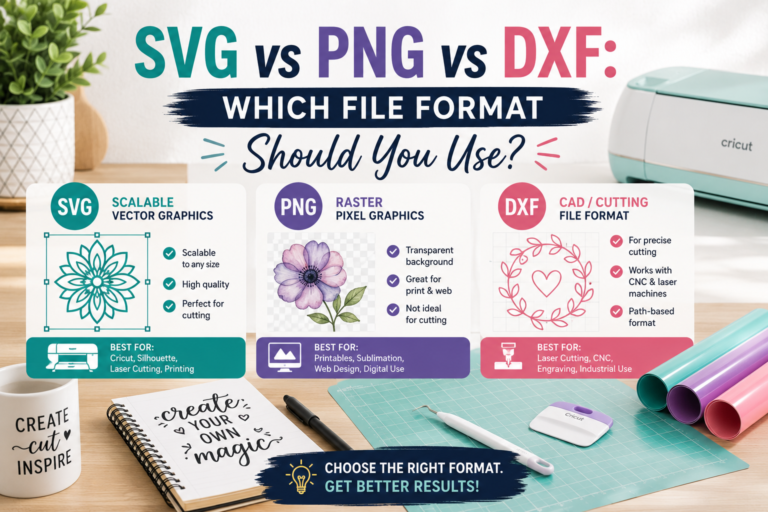
SVG vs PNG vs DXF: Which File Format Should You Use?
You just downloaded an SVG file from PickSVG and noticed the ZIP folder contains five different file formats — SVG,…
 Cricut Tutorials & Guides
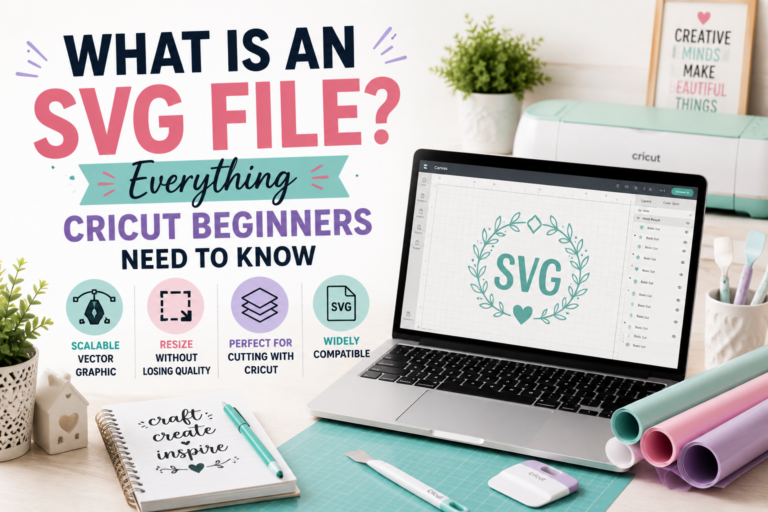
What is an SVG File? Everything Cricut Beginners Need to Know
If you’ve recently purchased a Cricut or Silhouette cutting machine, you’ve probably seen the term “SVG file” everywhere — on…