If you’ve recently purchased a Cricut or Silhouette cutting machine, you’ve probably seen the term “SVG file” everywhere — on Etsy listings, Pinterest boards, craft Facebook groups, and design marketplaces like PickSVG. But what exactly is an SVG file, and why does every crafter swear by them?
In this complete beginner’s guide, we’ll break down everything you need to know about SVG files: what they are, how they work, why they matter for crafting, and how to start using them in your projects today. By the end, you’ll feel confident downloading and using SVGs like a pro.
📋 Table of Contents
What Does SVG Stand For?
SVG stands for Scalable Vector Graphics. It’s a digital image file format — similar to JPG or PNG — but with one major superpower: SVG files use mathematical formulas (called vectors) to draw shapes, lines, and curves instead of tiny colored dots (pixels).
This means an SVG file can be scaled to any size — from a tiny 1-inch sticker to a massive 6-foot wall decal — without ever losing quality. No blurriness, no pixelation, no distortion. The image stays crisp and perfectly sharp at every size.
SVG was developed by the World Wide Web Consortium (W3C) as an open standard for vector graphics on the web. Today, it’s the go-to file format for crafters, designers, and anyone who works with cutting machines like Cricut and Silhouette.
A PNG image is like a mosaic — made of tiny colored squares. Zoom in and you see the individual squares. An SVG is like a blueprint — it tells your computer (or cutting machine) exactly how to draw the shape, so it looks perfect at any zoom level.
Vector vs Raster: The Key Difference
Understanding the difference between vector and raster images is the single most important concept for any new crafter. Once you understand this, everything about SVG files clicks into place.
Vector images (like SVG) use mathematical formulas to define shapes. Think of it as a set of instructions: “draw a line from point A to point B, curve to point C.” Because they’re instruction-based, they remain perfectly sharp no matter how big or small you make them.
Raster images (like PNG and JPG) are grids of tiny colored squares called pixels. They look great at their original size, but when you enlarge them, those pixels stretch — creating blurry, jagged edges that don’t cut well on your Cricut or Silhouette.
Math-based — infinite resolution.
Pixel-based — fixed resolution.
How Do SVG Files Work?
Unlike regular images that store color information for each individual pixel, SVG files store instructions. They’re actually written in XML code — a text-based language that describes shapes, paths, colors, and positions.
When you open an SVG file, your computer (or cutting machine) reads these instructions and draws the image in real-time. Because it’s drawing from instructions rather than displaying a fixed grid of pixels, the result is always perfectly smooth and sharp.
Here’s What SVG Code Looks Like
Don’t worry — you’ll never need to write SVG code yourself! But understanding what’s happening under the hood helps appreciate why SVGs are so powerful for crafting:
<svg width=“100” height=“100”>
<path d=“M50 88 C25 65, 0 40, 50 15
C100 40, 75 65, 50 88Z”
fill=“#FF6B6B” />
</svg>
That small piece of code creates a perfectly scalable heart that can be resized from a 1-inch sticker to a 6-foot wall decal — and it’ll look flawless either way. Your Cricut Design Space or Silhouette Studio reads this code and converts it into precise cutting paths for your machine.
Why Are SVG Files Important for Crafters?
If you own a Cricut Maker, Cricut Explore, Cricut Joy, or any Silhouette machine, SVG files are the gold standard for your projects. Here’s exactly why crafters prefer SVGs over other file formats:
1. Infinite Scalability
Need a design on a tiny earring AND a large wall sign? With an SVG, you use the same file for both. Scale it up or down without any loss in quality — the cutting lines remain perfectly smooth and precise.
2. Precise Cutting Paths
Cutting machines need clear paths to follow. SVG files provide mathematically exact paths, which means your Cricut or Silhouette cuts with precision every single time. No jagged edges, no guesswork, no wasted materials.
3. Editable Layers and Colors
Most SVG designs come with separate layers — perfect for multi-color vinyl projects. You can easily change colors, hide layers, rearrange elements, or remove parts you don’t need. This gives you complete creative control.
4. Incredibly Small File Size
Because SVGs store math formulas instead of pixel data, the files are incredibly lightweight. A complex SVG design might be just 15-50KB, compared to a high-resolution PNG at 2-5MB. This means faster downloads and easier file management on your computer.
5. Universal Compatibility
SVG files work with virtually every design application and cutting machine on the market. Whether you use Cricut Design Space, Silhouette Studio, Adobe Illustrator, Inkscape, or even a web browser — SVGs just work.
🎨 Ready to Start Crafting with SVG Files?
Browse thousands of premium SVG designs at PickSVG — compatible with Cricut, Silhouette, and all cutting machines. Every file includes SVG, PNG, EPS, DXF, and PDF formats with a commercial license.
Browse SVG Collections →Where Can You Use SVG Files?
SVG files aren’t just for cutting machines — they’re incredibly versatile. Here are the most popular ways crafters and designers use SVG files in their projects:
The versatility of SVG files makes them the most popular choice for crafters who sell on Etsy, at craft fairs, or through their own online stores. With a commercial license from PickSVG, you can use our designs to create and sell physical products like t-shirts, mugs, signs, decals, and much more.
How to Open and Use SVG Files
One of the best things about SVG files is that you don’t need expensive software to use them. Here are the most popular programs that open and work with SVG files:
The free version of Silhouette Studio (Basic Edition) does not open SVG files. You need the Designer Edition upgrade ($49.99) to import SVGs. If you’re on the free version, use the DXF file from your PickSVG download instead — it works perfectly in Basic Edition.
How to Upload an SVG File to Cricut Design Space
If you’re using a Cricut machine, here’s the step-by-step process to get your SVG file ready for cutting:
- Download your SVG file from PickSVG — it will save as a ZIP file
- Unzip the folder — right-click and “Extract All” (Windows) or double-click (Mac)
- Open Cricut Design Space and start a new project
- Click “Upload” in the left panel
- Select “Upload Image” and choose the .svg file from the unzipped folder
- Click “Upload” — your design appears on canvas with all layers intact
- Resize and customize as needed, then click “Make It” to send to your machine
Always upload the .svg file, not the PNG. The SVG preserves all layers and cutting paths, giving you the best cutting quality. If you upload a PNG instead, Cricut will try to auto-trace it — resulting in lower quality, jagged edges, and missing layers. For a more detailed walkthrough, check our complete Cricut SVG tutorial.
What File Formats Does PickSVG Include?
When you purchase any design from PickSVG, your ZIP download includes 5 file formats so you’re covered for every project:
| Format | Type | Best For | Cricut | Silhouette |
|---|---|---|---|---|
| .SVG | Vector | Cutting (vinyl, HTV, paper) | ✓ YesBEST | ✓ Designer Ed. |
| .PNG | Raster | Print Then Cut, sublimation | ✓ Yes | ✓ Yes |
| .DXF | Vector | Silhouette Studio (Free) | ✗ | ✓ YesFREE |
| .EPS | Vector | Adobe Illustrator, CorelDRAW | ✗ | ✗ |
| Both | Printing, sharing, archiving | ✗ | ✗ |
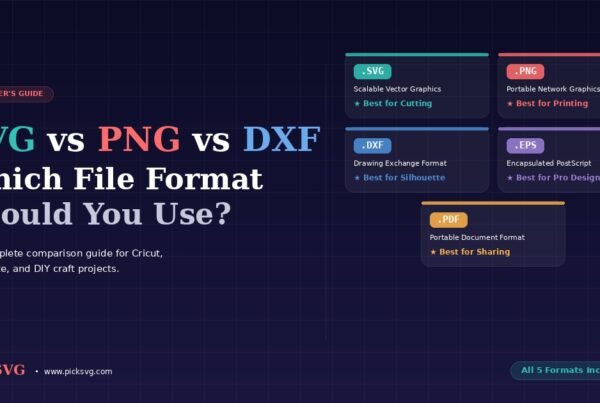
Not sure which format to use? Read our complete guide: SVG vs PNG vs DXF: Which File Format Should You Use?
5 Essential Tips for SVG Beginners
Many new crafters try to upload the ZIP file directly into Cricut Design Space — this won’t work! Always extract/unzip the files first, then upload the .svg file from inside the unzipped folder. This is the #1 issue beginners run into.
Free vs Premium SVG Files: What’s the Difference?
You’ll find both free and premium (paid) SVG files across the internet. Here’s what you should know:
Free SVG files are great for practice and simple projects. However, they often come with limitations: restricted commercial use, fewer file formats, lower quality designs, and limited variety. Many free SVGs are also available on hundreds of other sites, making your products less unique.
Premium SVG files from PickSVG offer significant advantages: full commercial license included, all 5 file formats (SVG, PNG, DXF, EPS, PDF), thoroughly tested cutting paths, unique designs, and a massive selection across dozens of categories. The small investment pays for itself many times over when you’re selling finished products.
✂️ Get Premium SVG Files with Commercial License
Every PickSVG download includes SVG, PNG, EPS, DXF, and PDF — ready for Cricut, Silhouette, and all cutting machines. Start creating and selling today!
Shop All SVG Files →